In this section, we will go over how to use your own uploaded asset to control the pose of your image generation.
High quality images perform the best for image controllability.
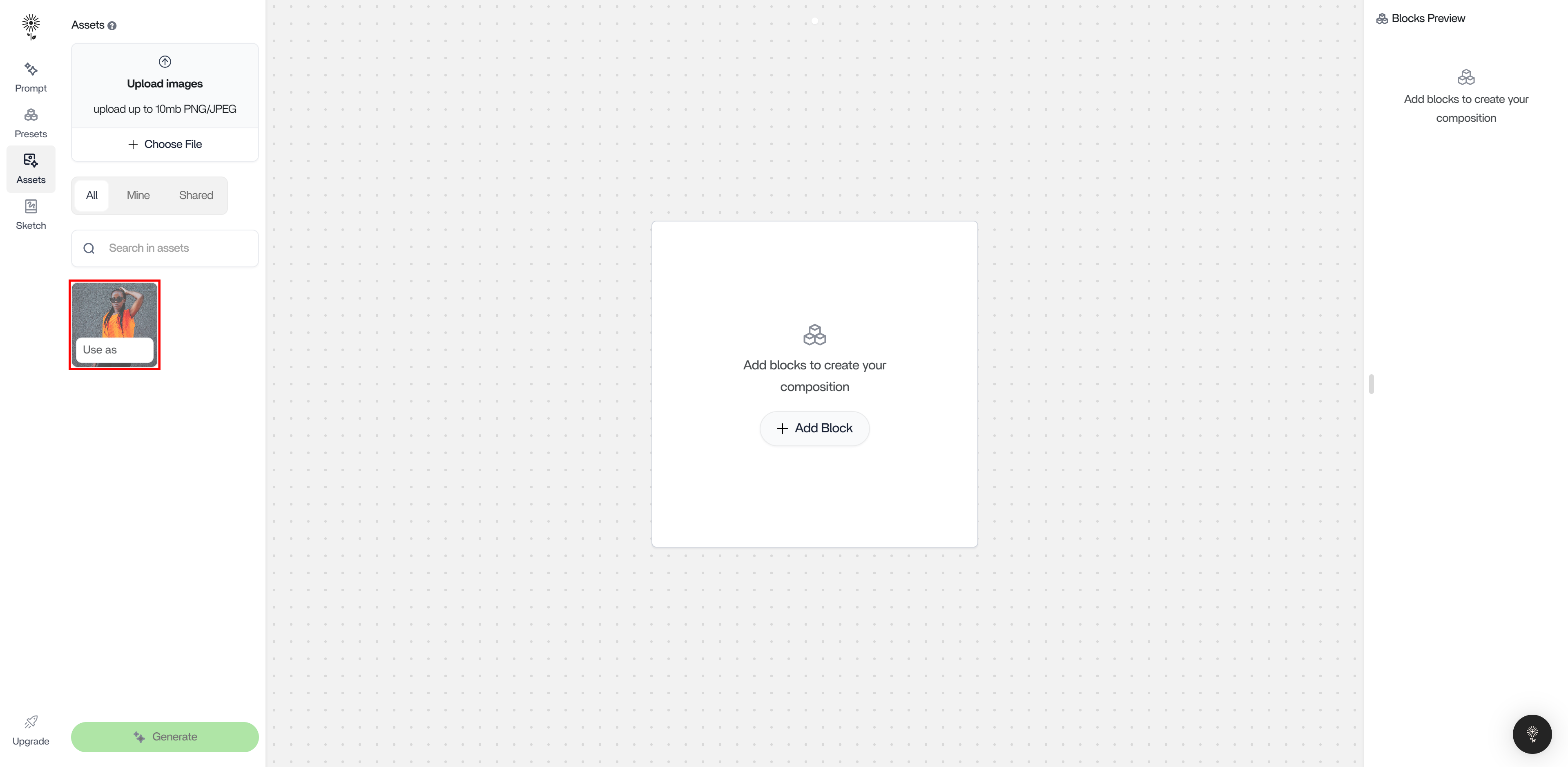
1. Hover over the image that you have uploaded for Pose Control
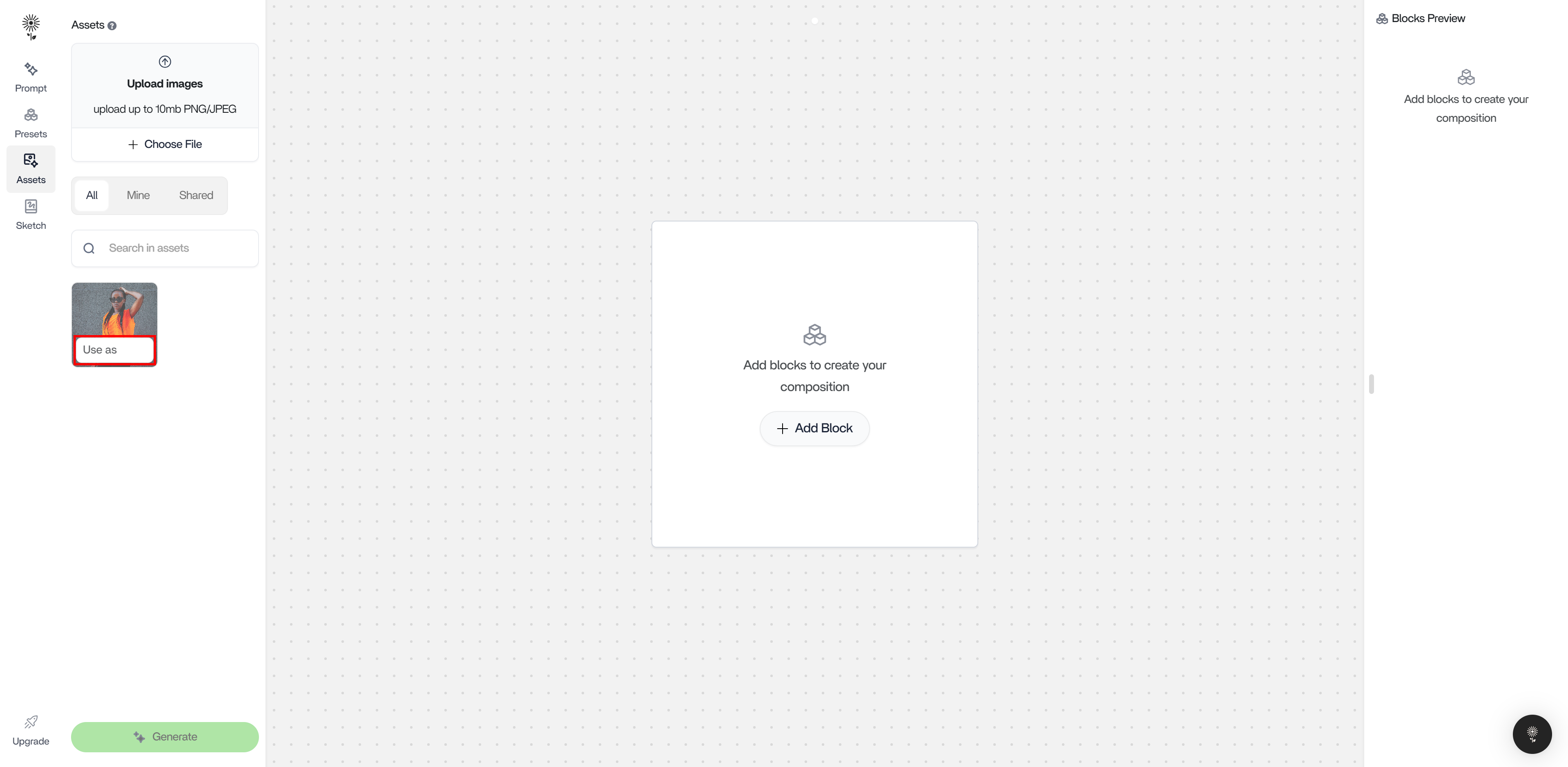
2. Click on “Use As”
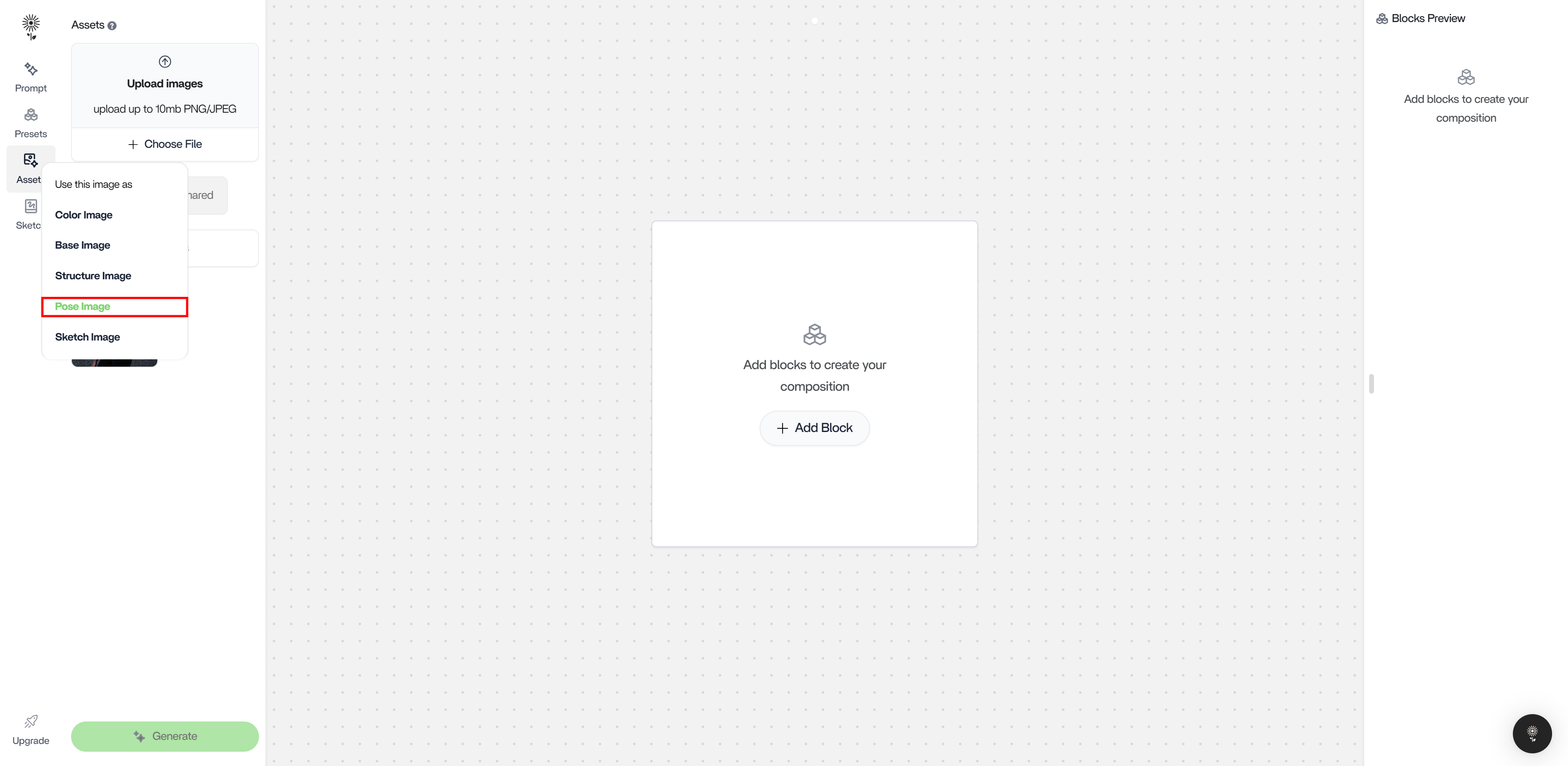
3. select “Pose Image”
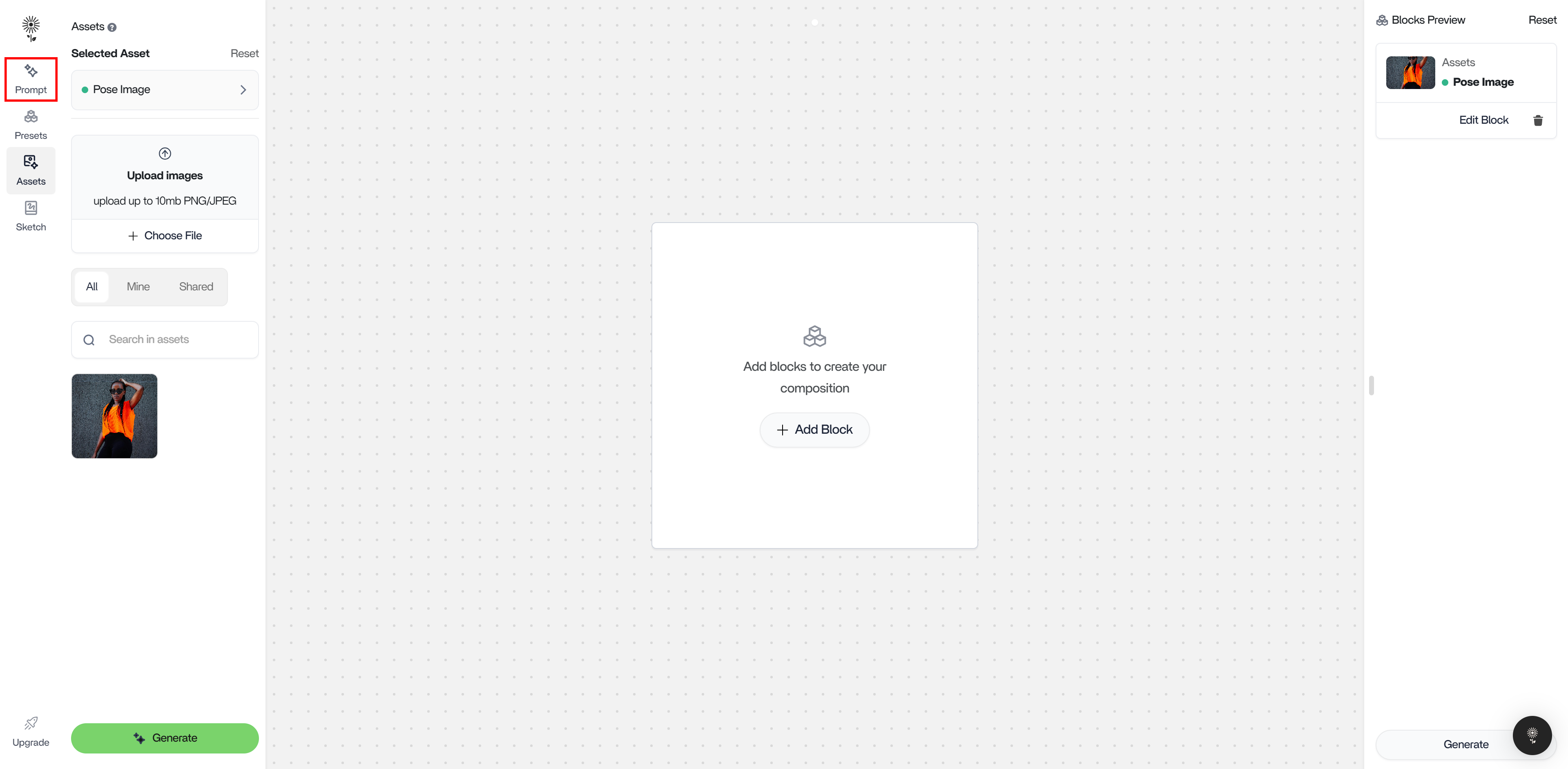
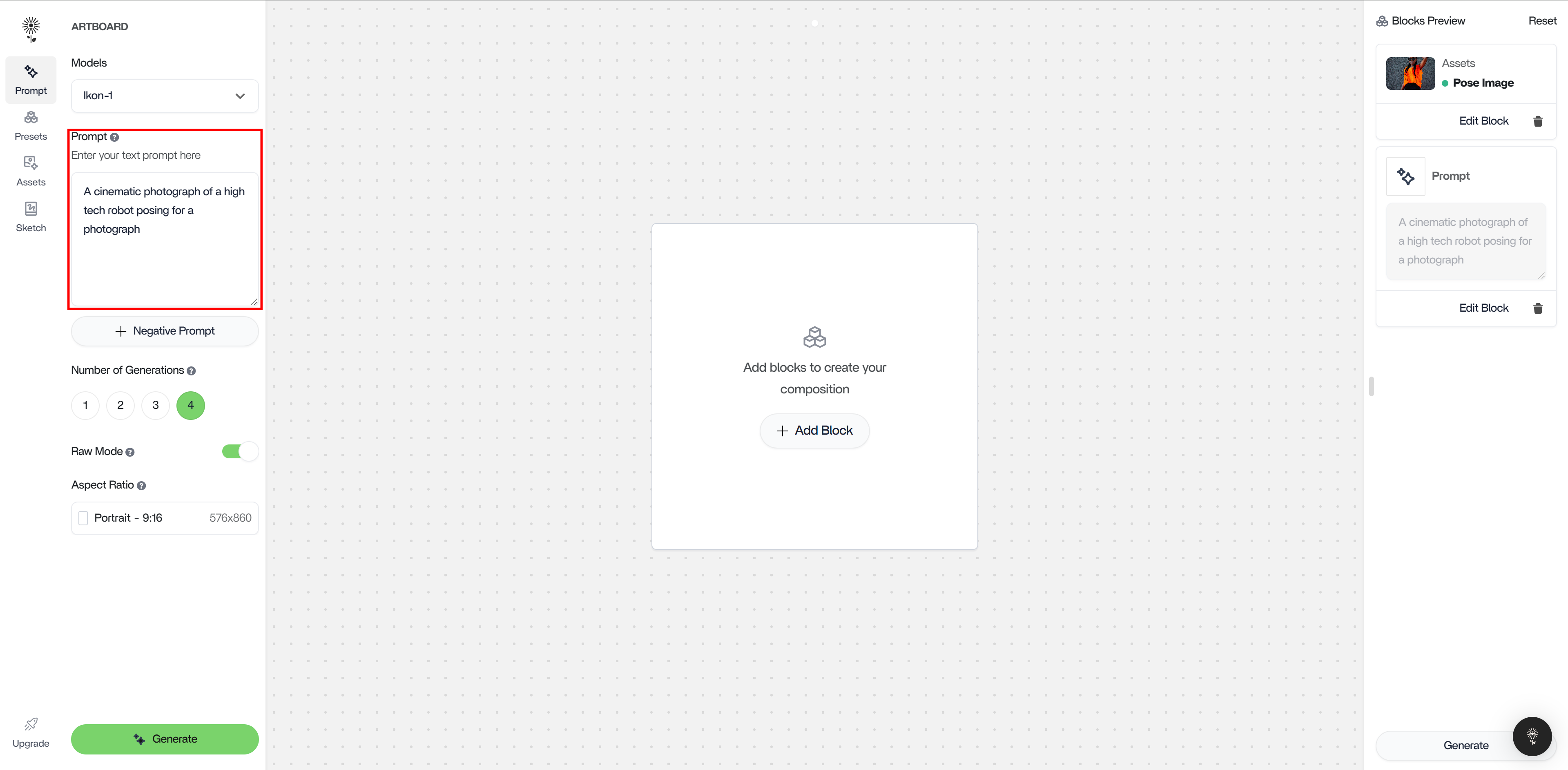
4. Head back to Prompt on the left action bar
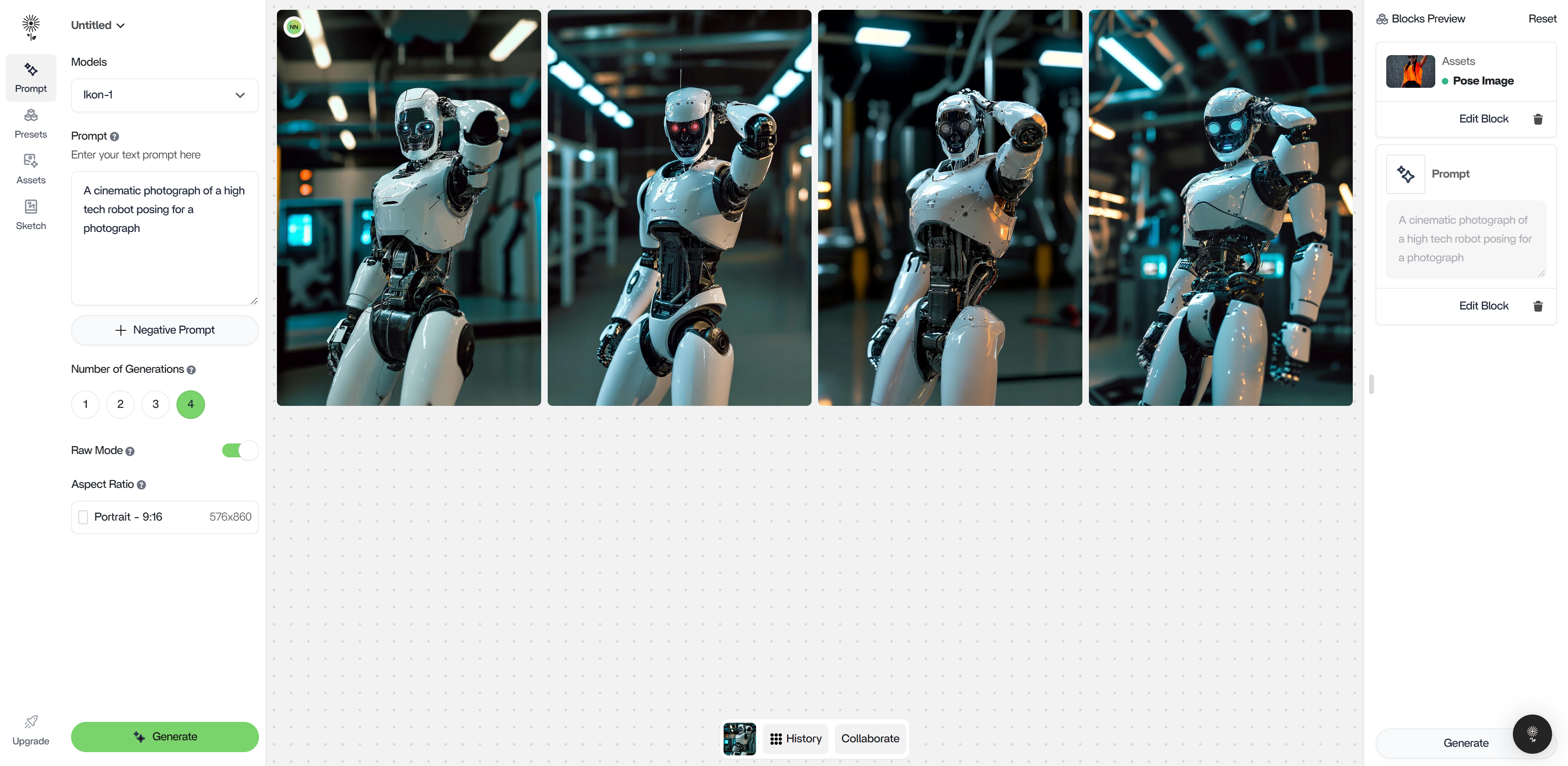
5. Type in your prompt and click “Generate” below or press enter.
Important Notes
1. Aspect Ratio
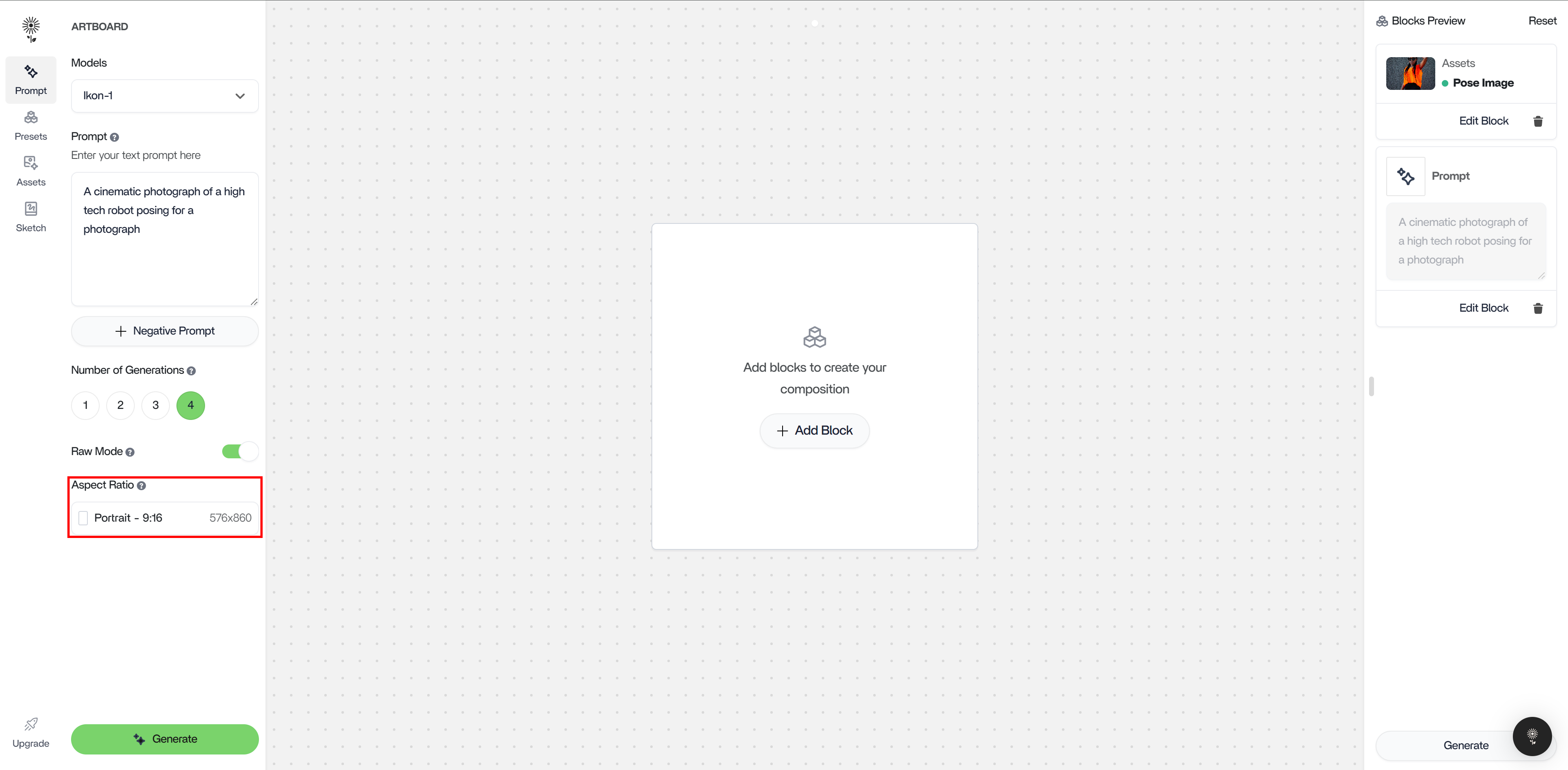
It is extremely important to match your generation’s aspect ratio to the aspect ratio of the asset being used. To do this, ensure you are in the Prompt tab and click on Aspect Ratio at the bottom of the column
a. Select the aspect ratio that is closest to that of your input image before generating.
b. If you do not do this, your image will come out distorted like the examples below:
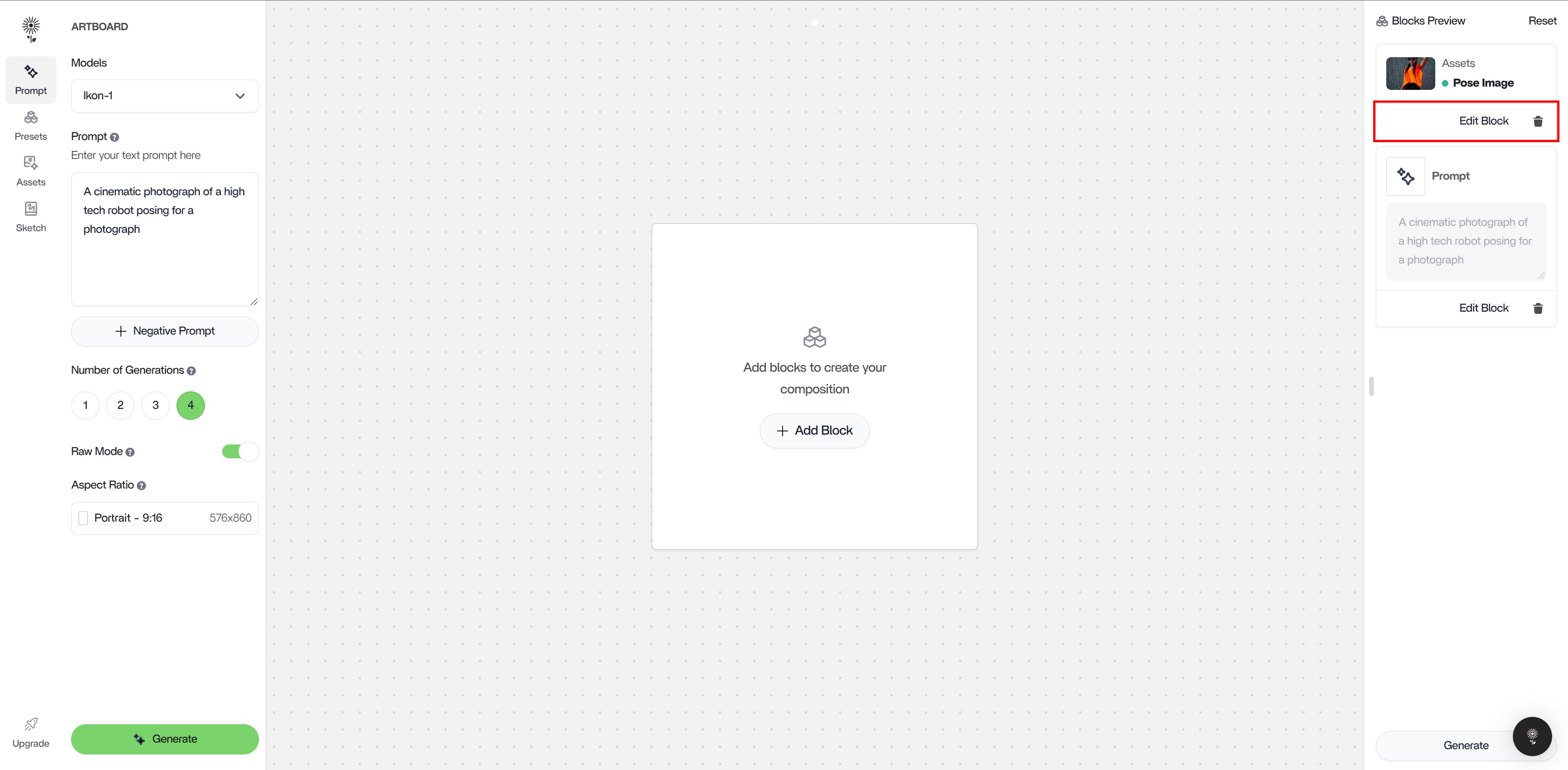
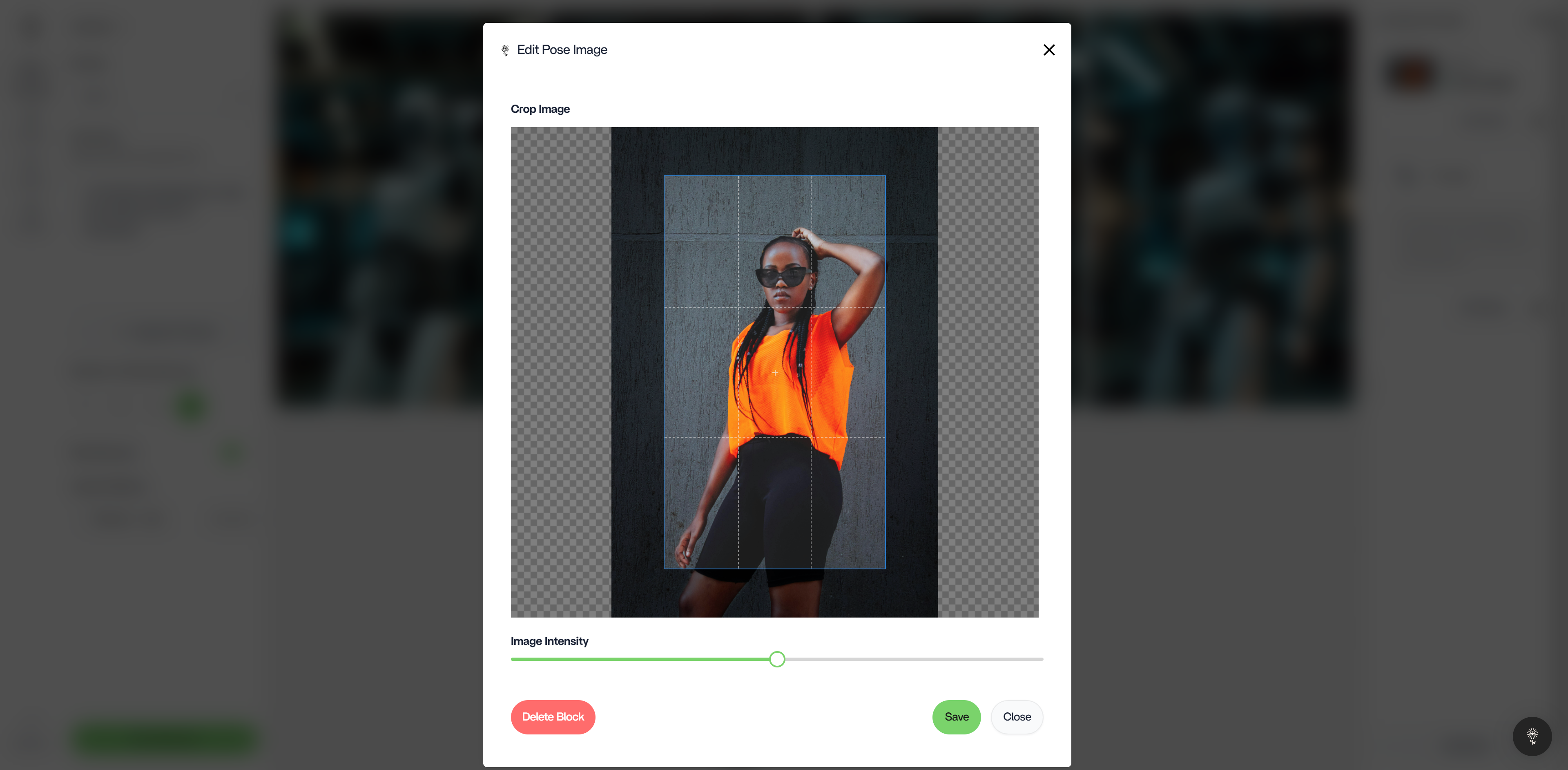
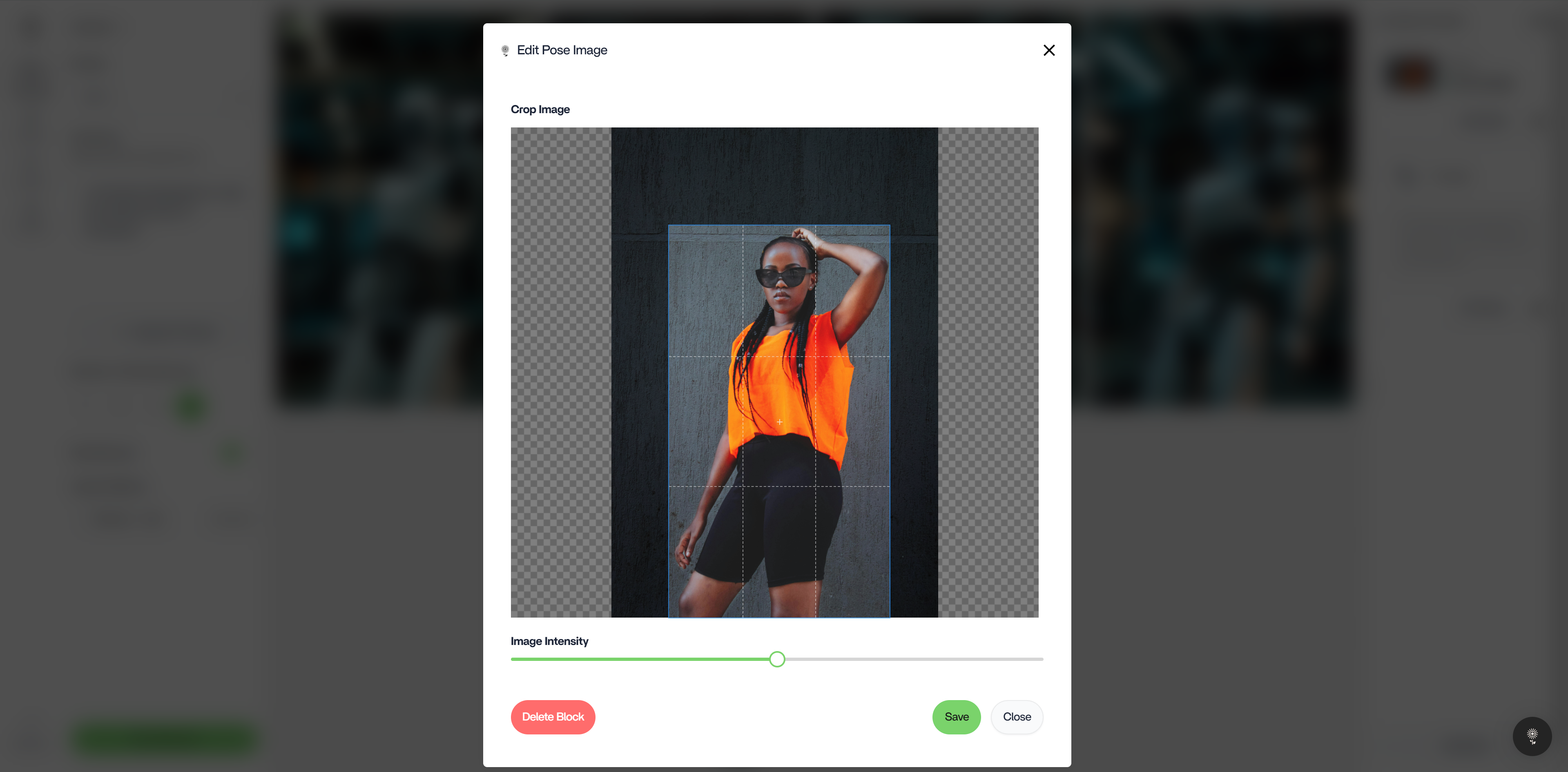
Edit Image
2. In the Edit Image modal, move the image selection area around to capture what you want your generation to focus on.
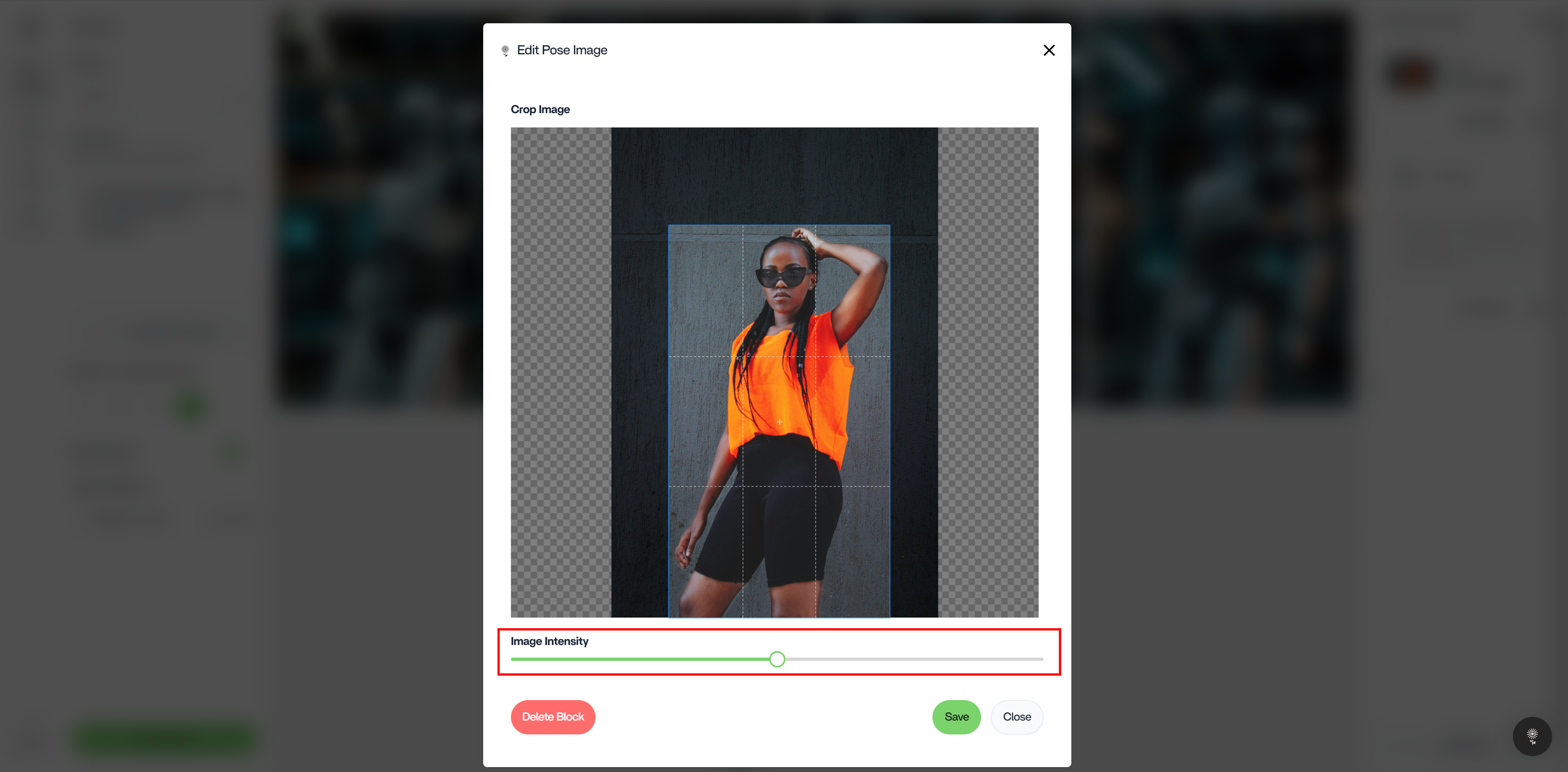
3. in the Edit Image modal, you can also adjust Image Weight. Move the slider left if you want your output to be less influenced by the image and move it to the right if you want your output to be more influenced by the image.