> ## Documentation Index
> Fetch the complete documentation index at: https://docs.nex.art/llms.txt
> Use this file to discover all available pages before exploring further.
# NEX Onboarding
> In this section, we will walk you through the NEX Onboarding process. Welcome to the first page of the NEX website.
### To start:
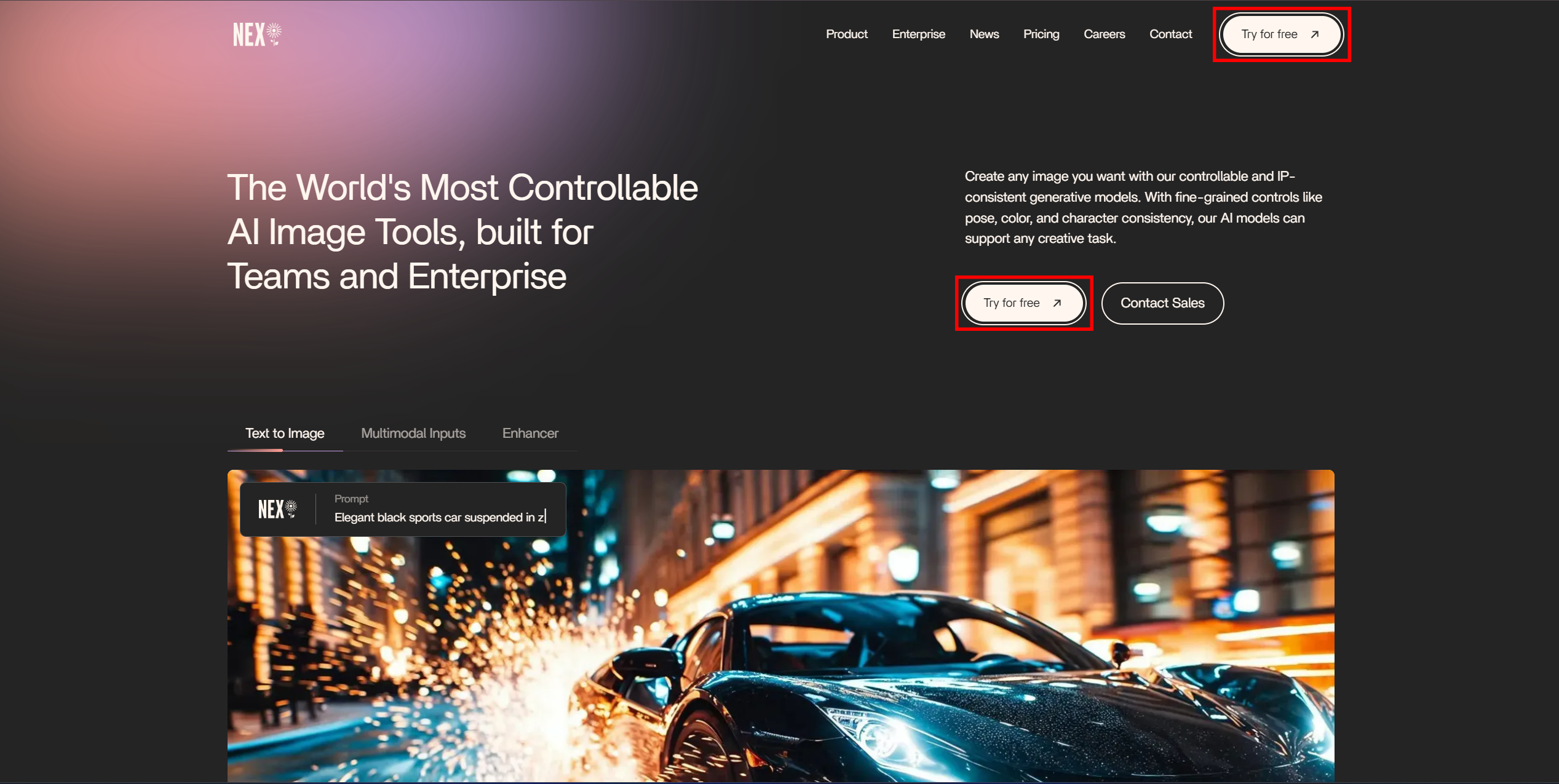
#### 1. Click either of the “Try for Free” buttons
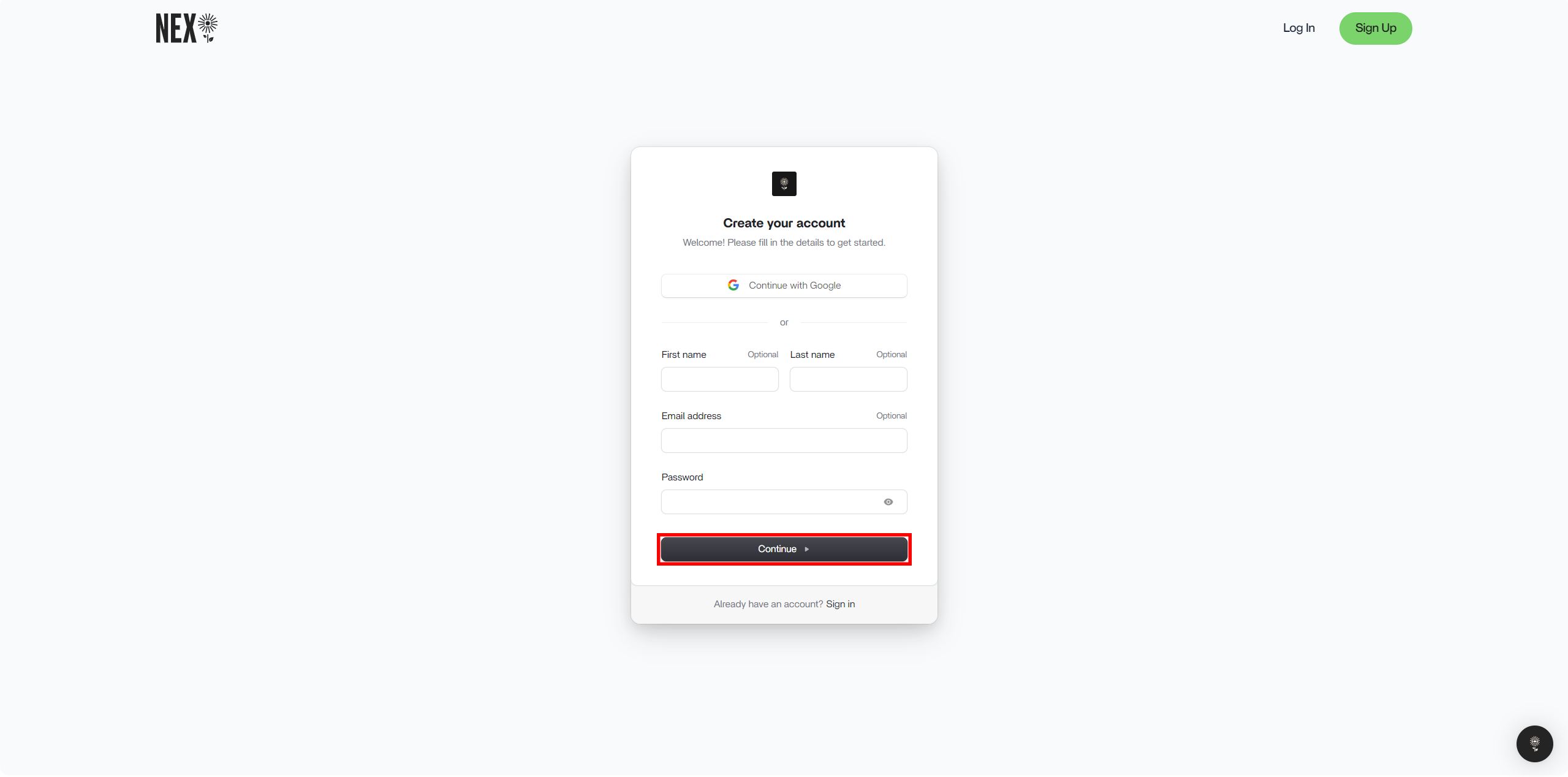
 #### 2. Fill in the required boxes of the Sign Up module and click “Continue” at the bottom.
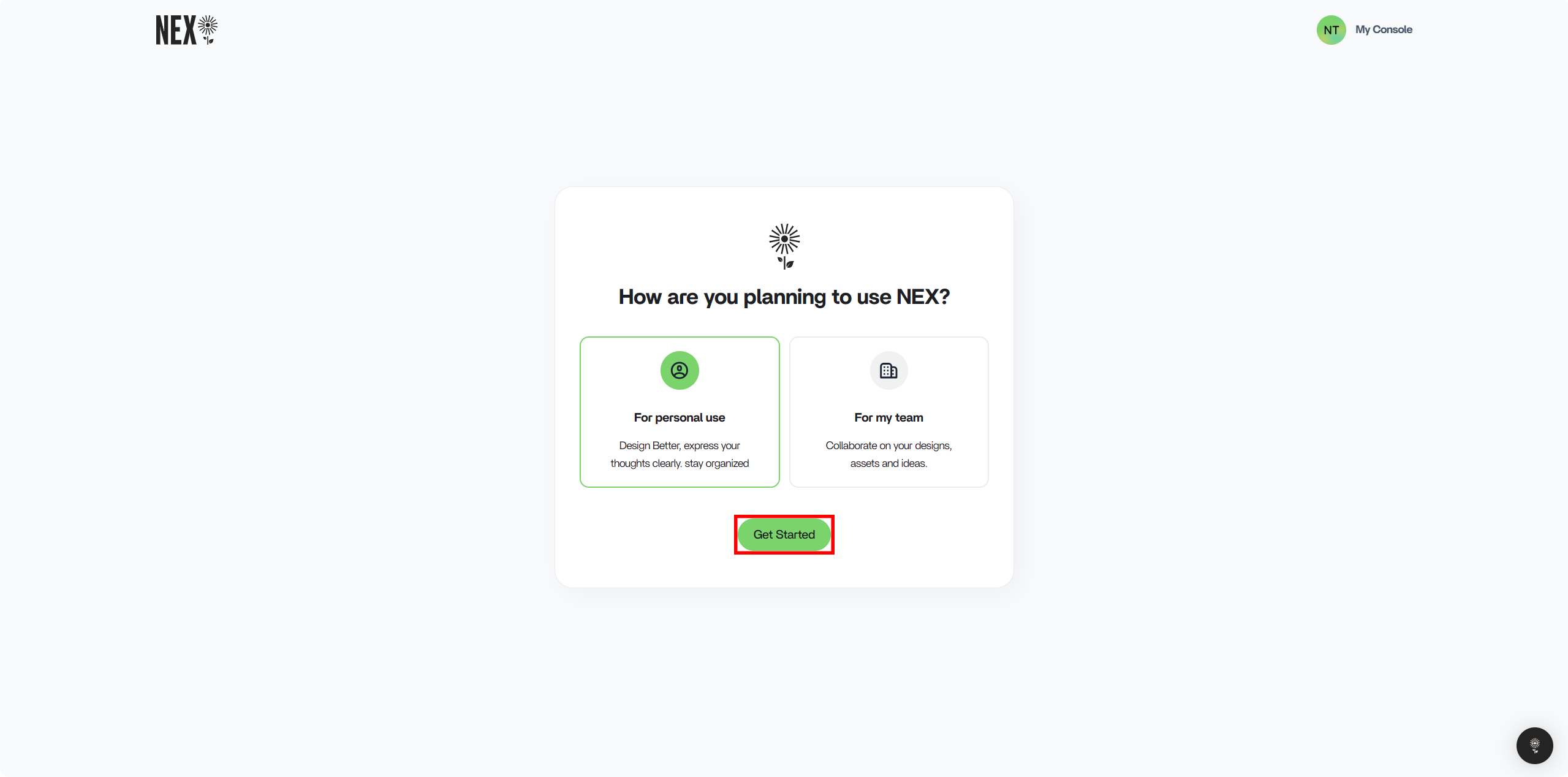
 #### 3. After deciding what you’re planning to use NEX for, select the option and click “Get Started”. Ensure that the option you want is the one outlined in green.
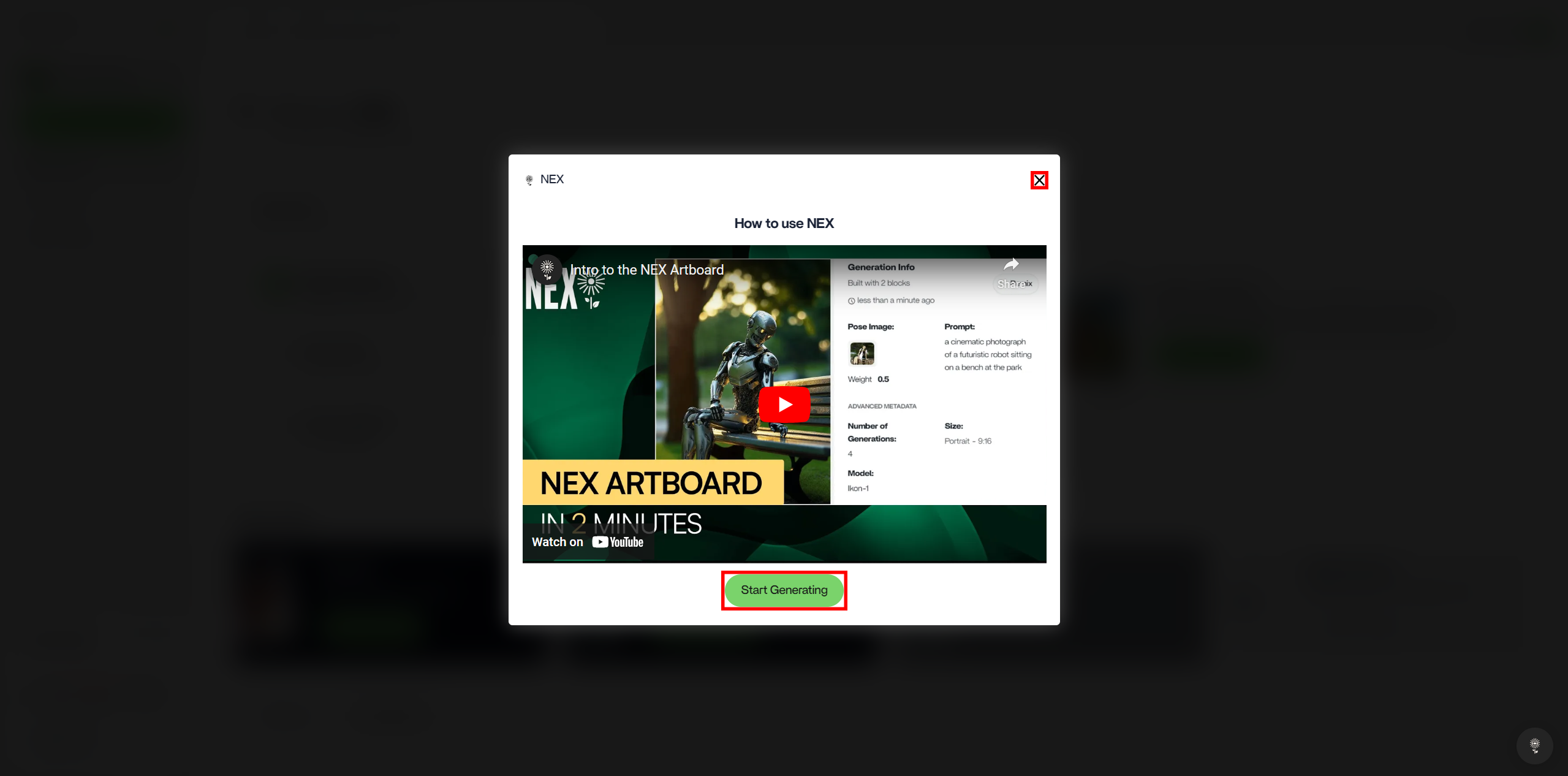
 #### 4. Once you’re in, you’ll be presented with a tutorial modal. If it’s your first time using NEX, we encourage you to watch the tutorial. Alternatively, you can exit out of the modal by clicking the X in the top right corner; or you can head straight to the Artboard by clicking “Start Generating” at the bottom of the modal.