> ## Documentation Index
> Fetch the complete documentation index at: https://docs.nex.art/llms.txt
> Use this file to discover all available pages before exploring further.
# Sketch Control
> Control your outputs using a Sketch.
In this section, we will go over how to use your own uploaded sketch asset to control your image generation.
High quality images perform the best for image controllability.
#### 1. Hover over the image that you uploaded
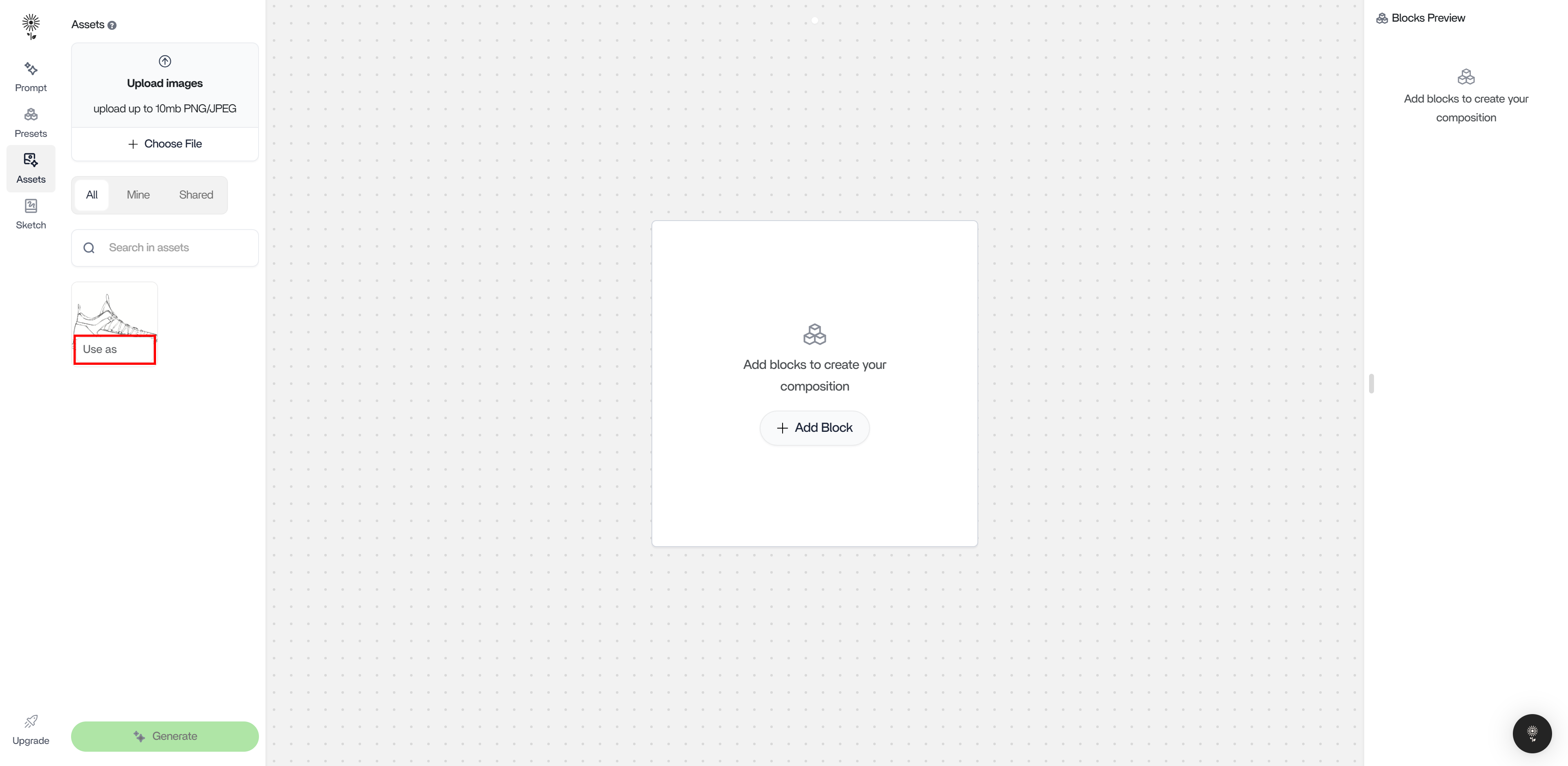
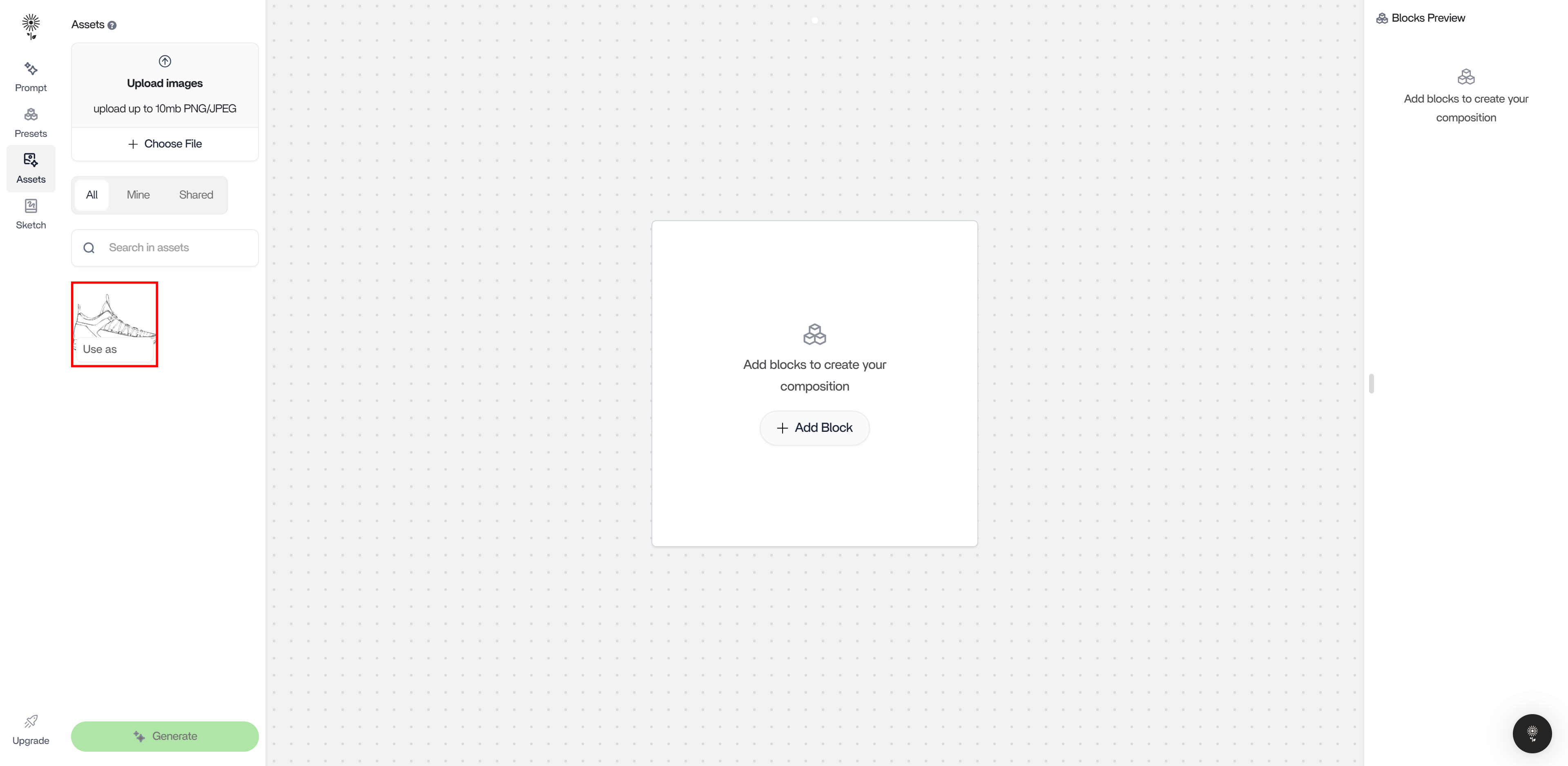 #### 2. Click on “Use As”
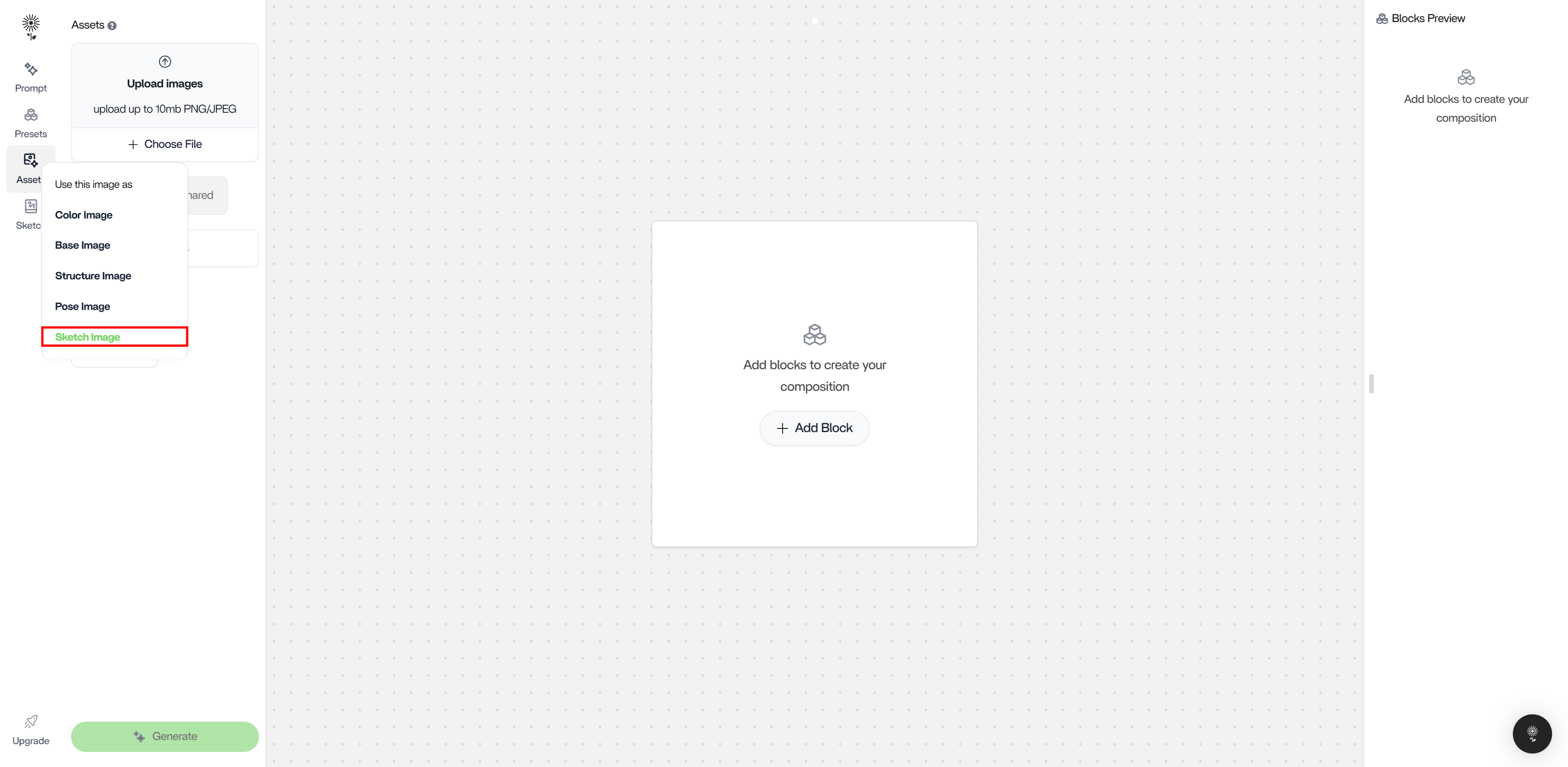
 #### 3. select “Sketch Image”
 #### 4. Head back to Prompt on the left action bar
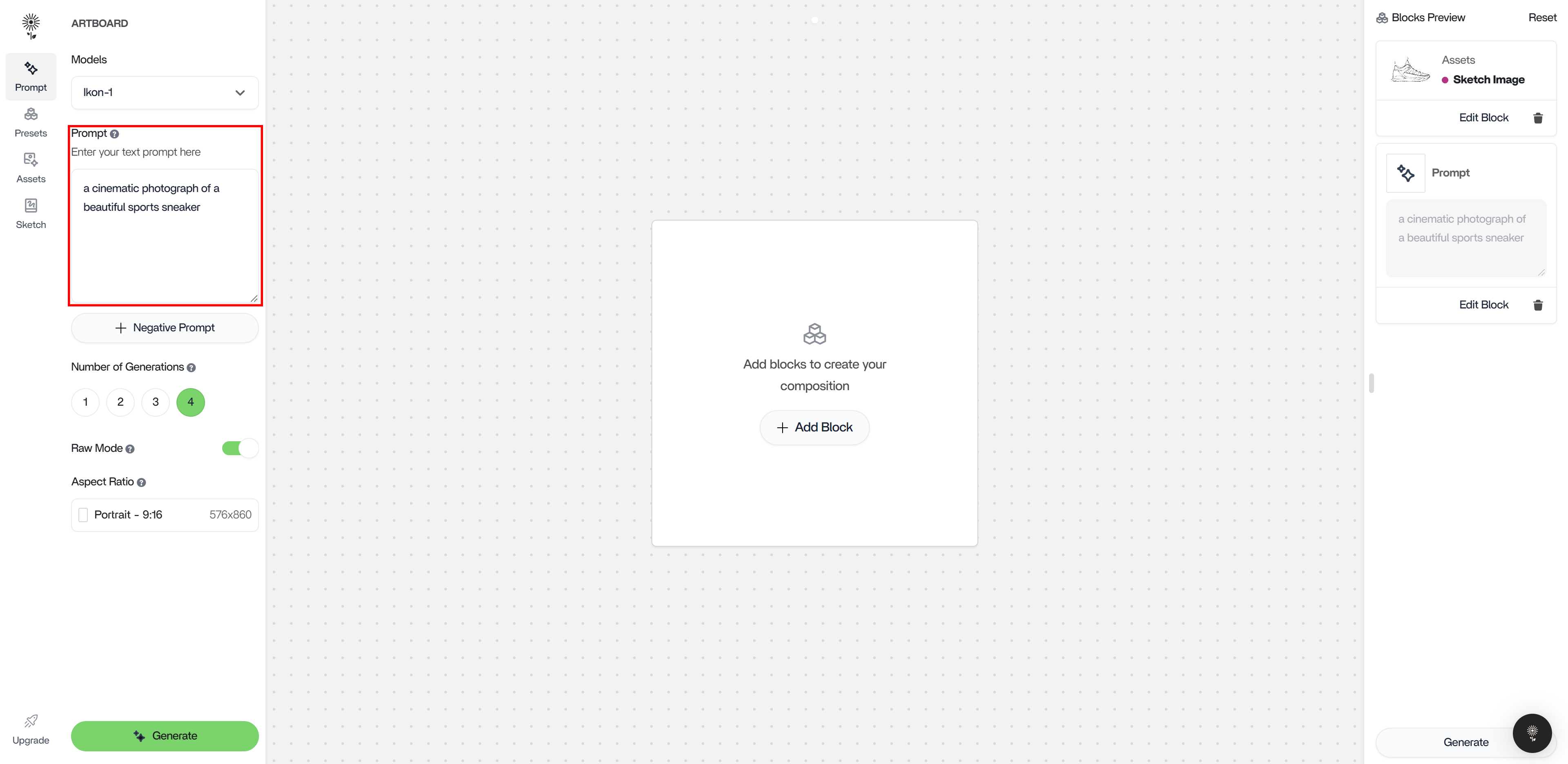
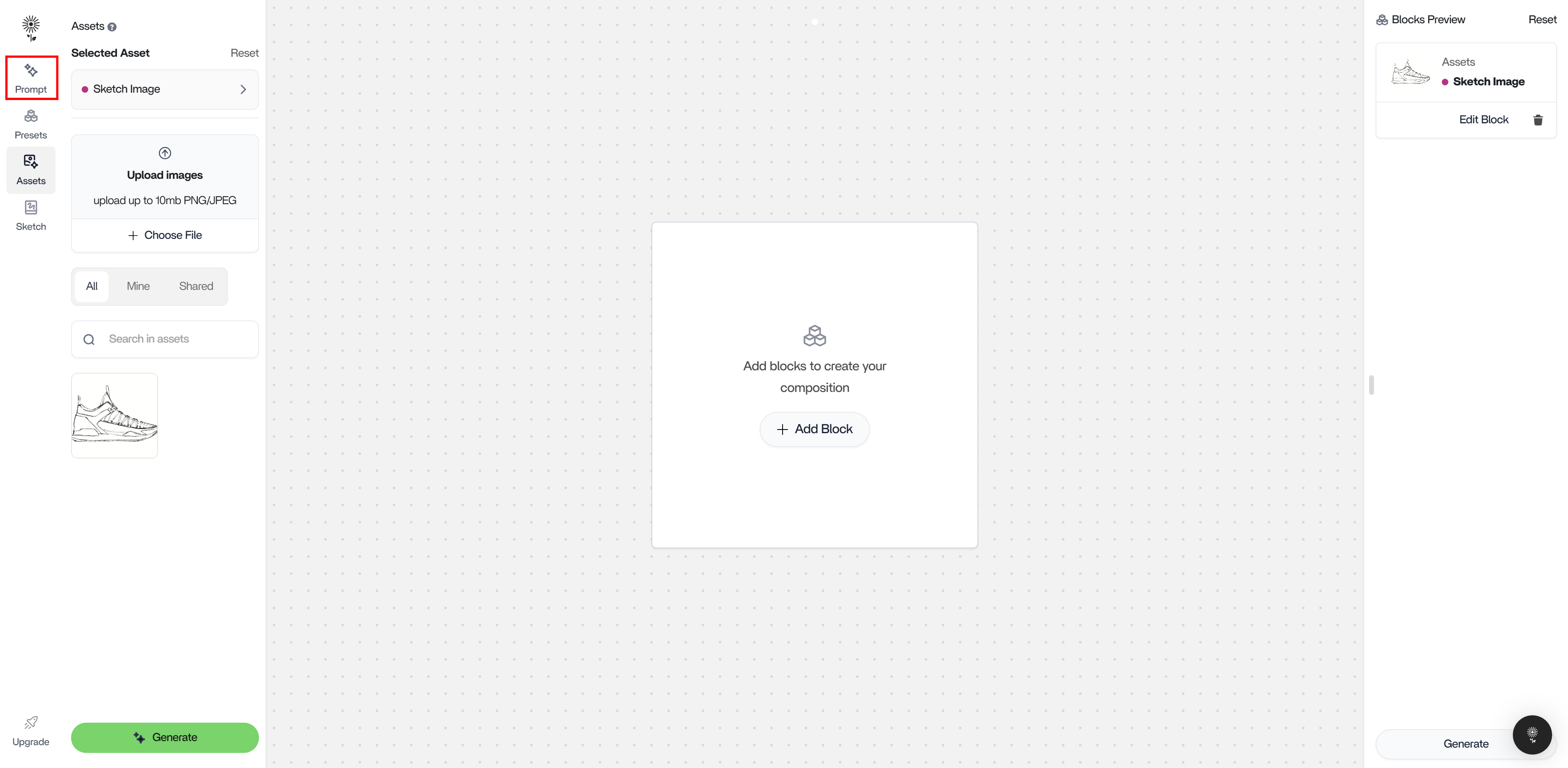 #### 5. Type in your prompt
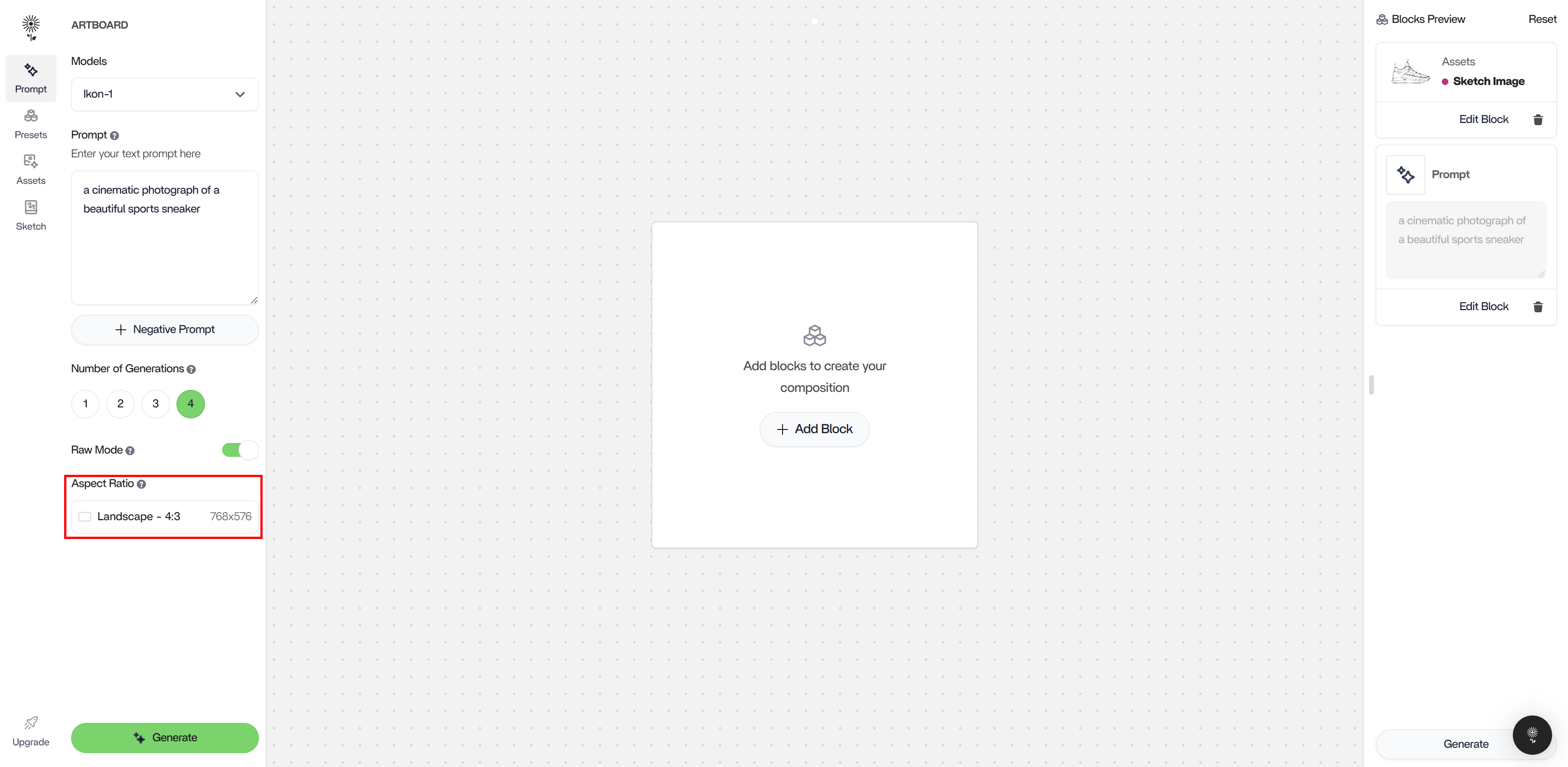
 #### 6. Check to make sure the aspect ratio of your Generation and Input Image match
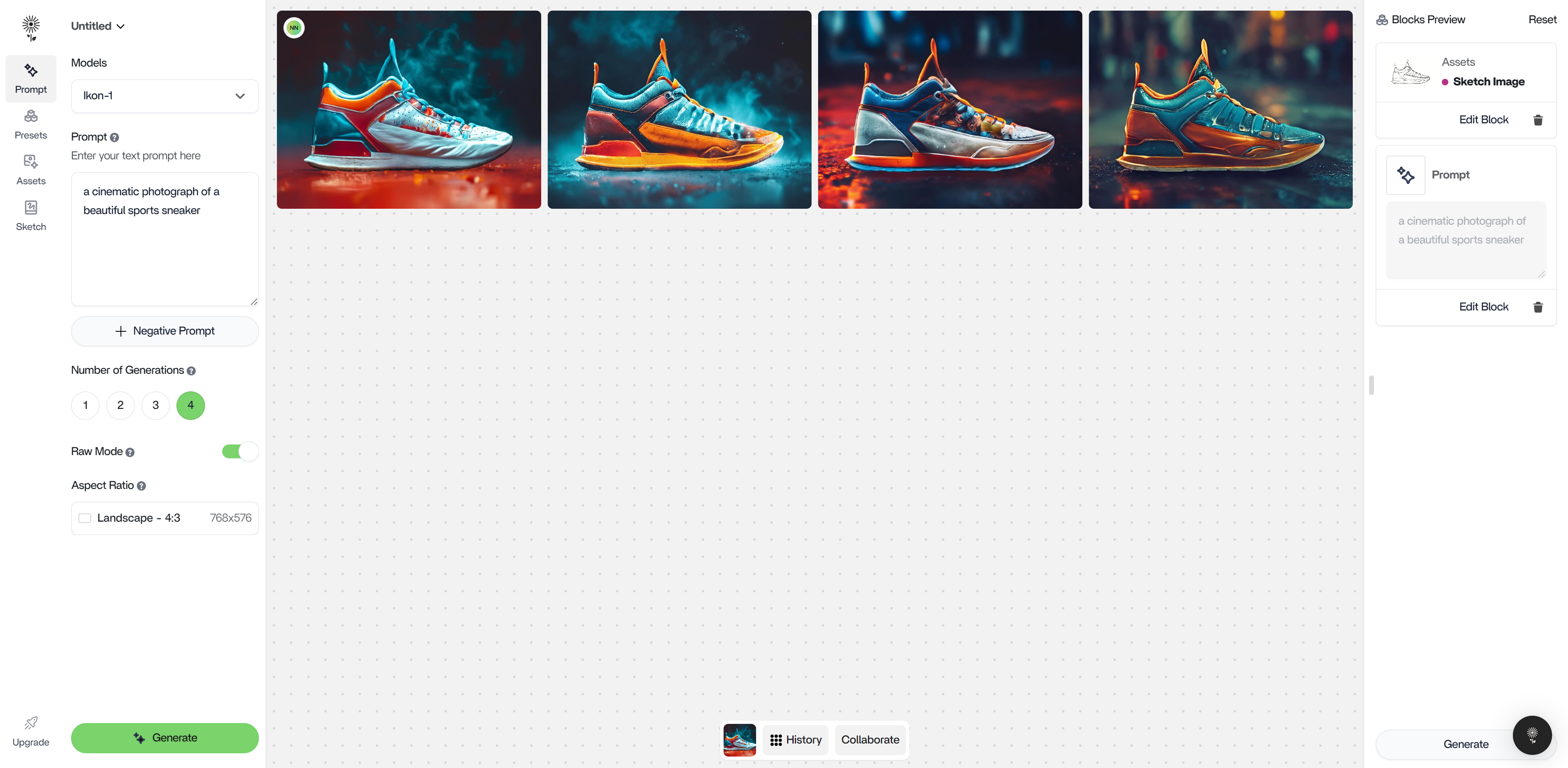
 #### 7. Click “Generate” below or press enter.
 ## Important Notes
### Aspect Ratio
1. It is extremely important to match your generation’s aspect ratio to the aspect ratio of the asset being used. To do this, ensure you are in the Prompt tab and click on Aspect Ratio at the bottom of the column
## Important Notes
### Aspect Ratio
1. It is extremely important to match your generation’s aspect ratio to the aspect ratio of the asset being used. To do this, ensure you are in the Prompt tab and click on Aspect Ratio at the bottom of the column
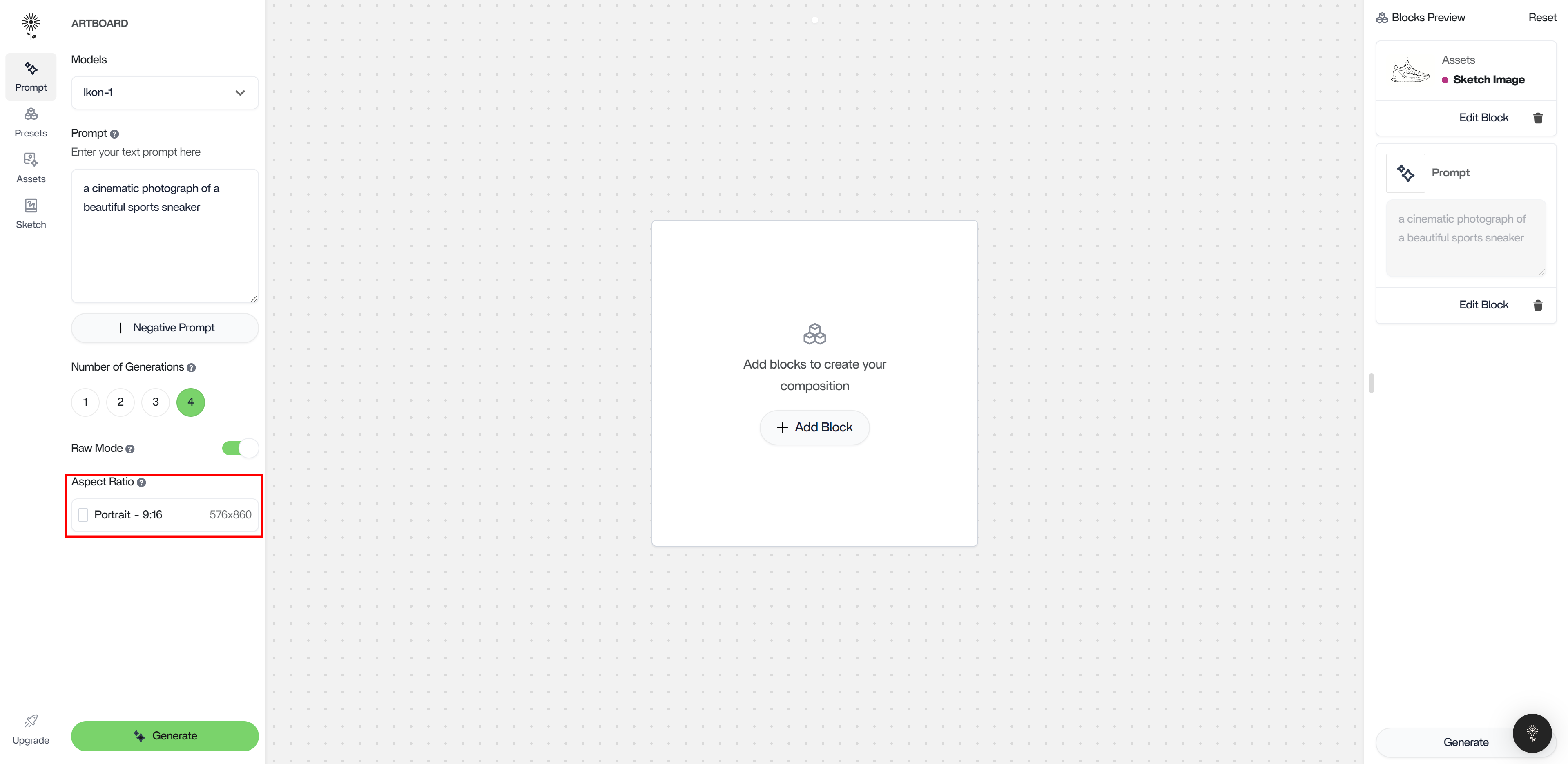 2. Select the Aspect Ratio that is closest to that of your Input Image before generating.
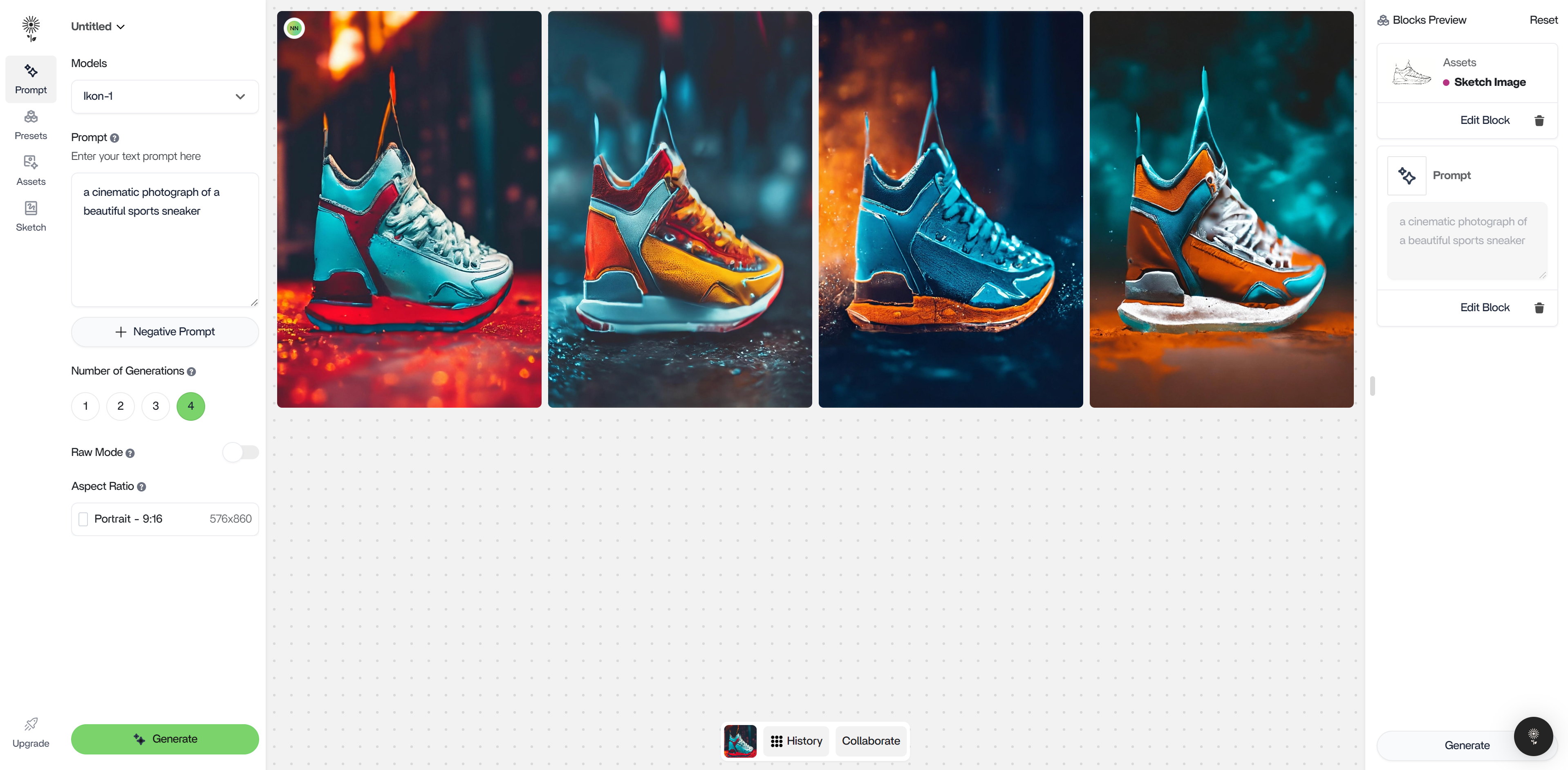
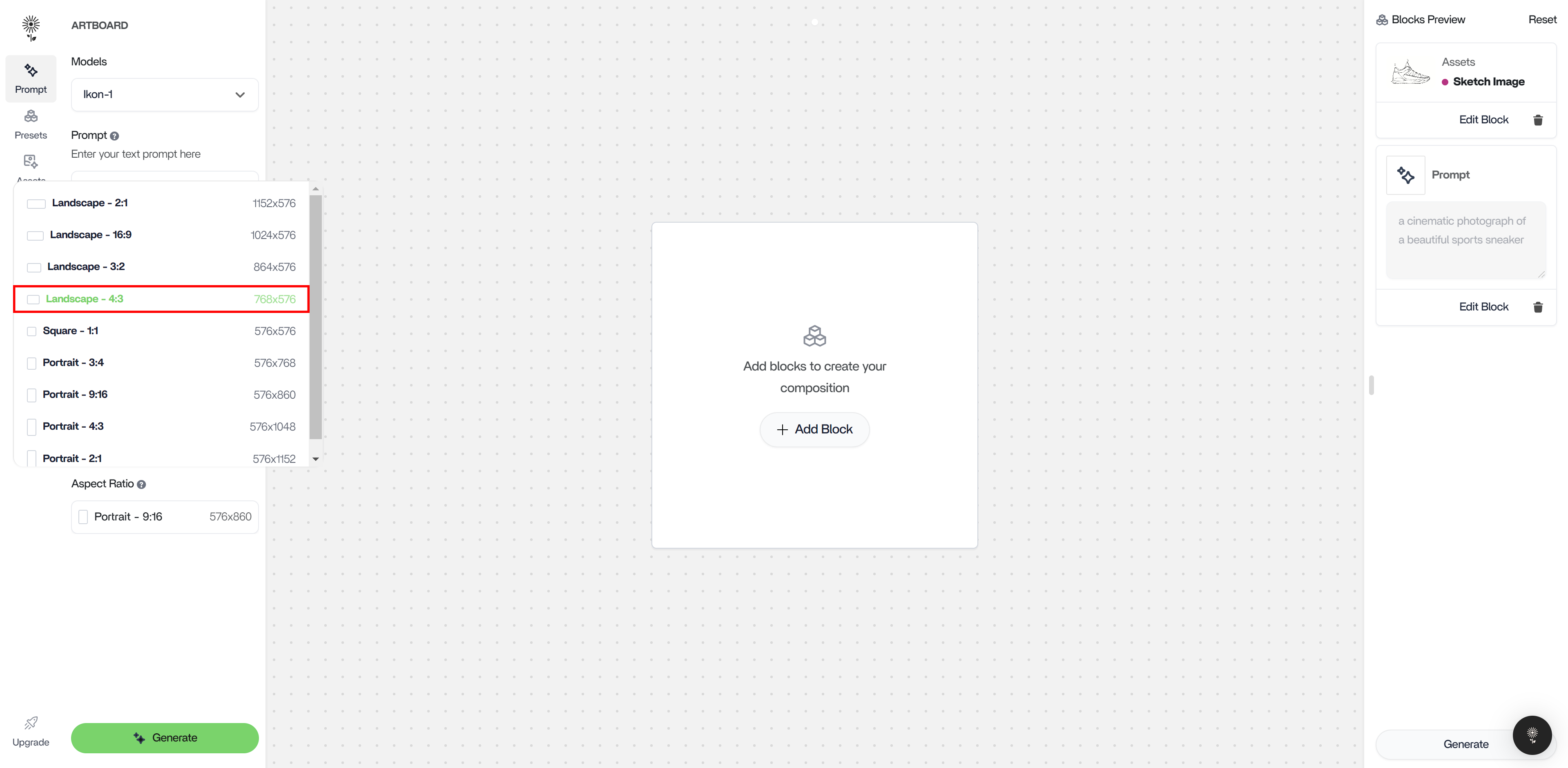 3. If you do not do this, your image will come out distorted like the examples below:
 ### High quality images perform the best for image controllability.
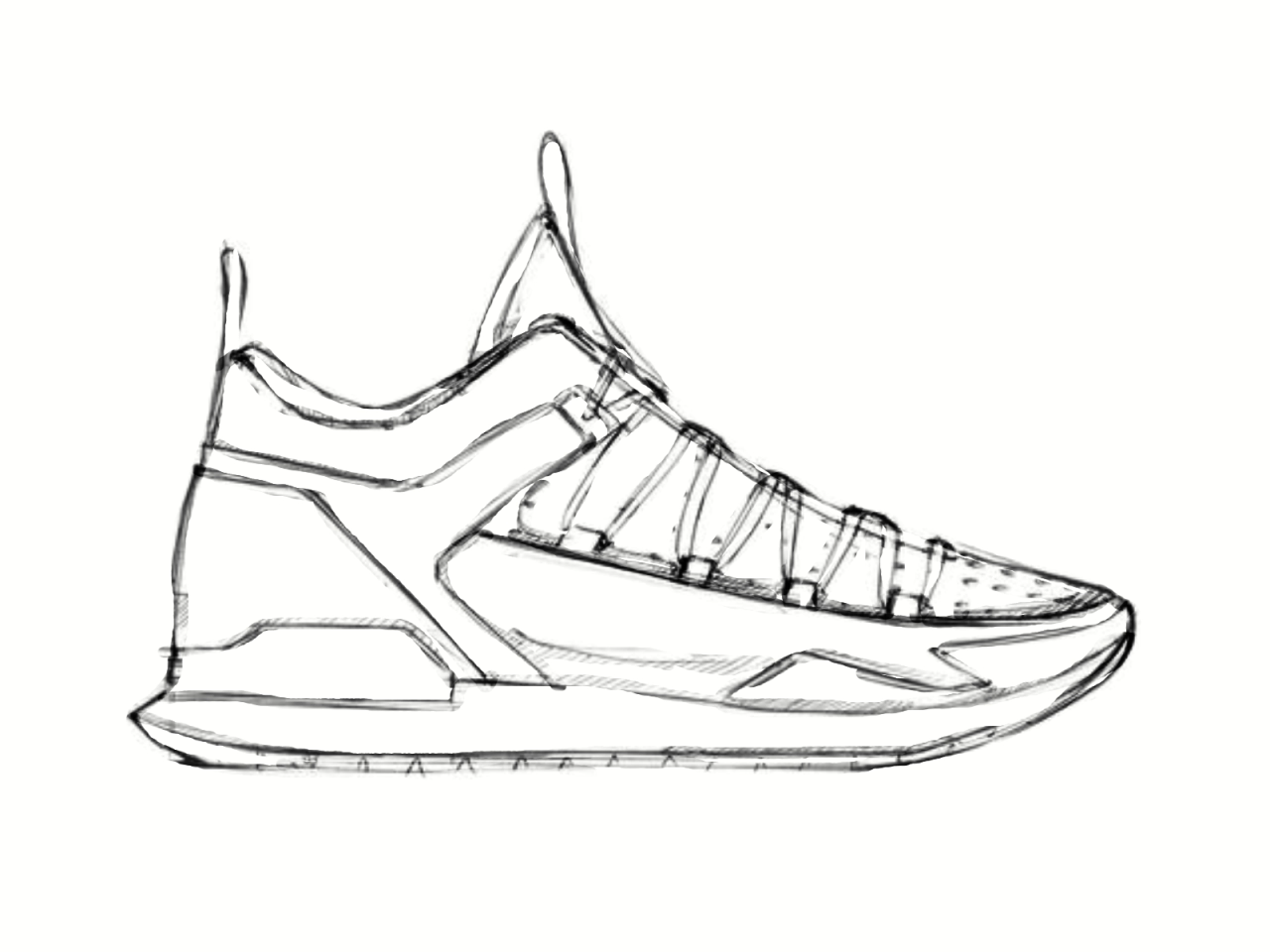
high quality images perform the best for image controllability. It is important that sketches have clearly defined lines as well as no blur. Examples of clear sketches below:
### High quality images perform the best for image controllability.
high quality images perform the best for image controllability. It is important that sketches have clearly defined lines as well as no blur. Examples of clear sketches below:
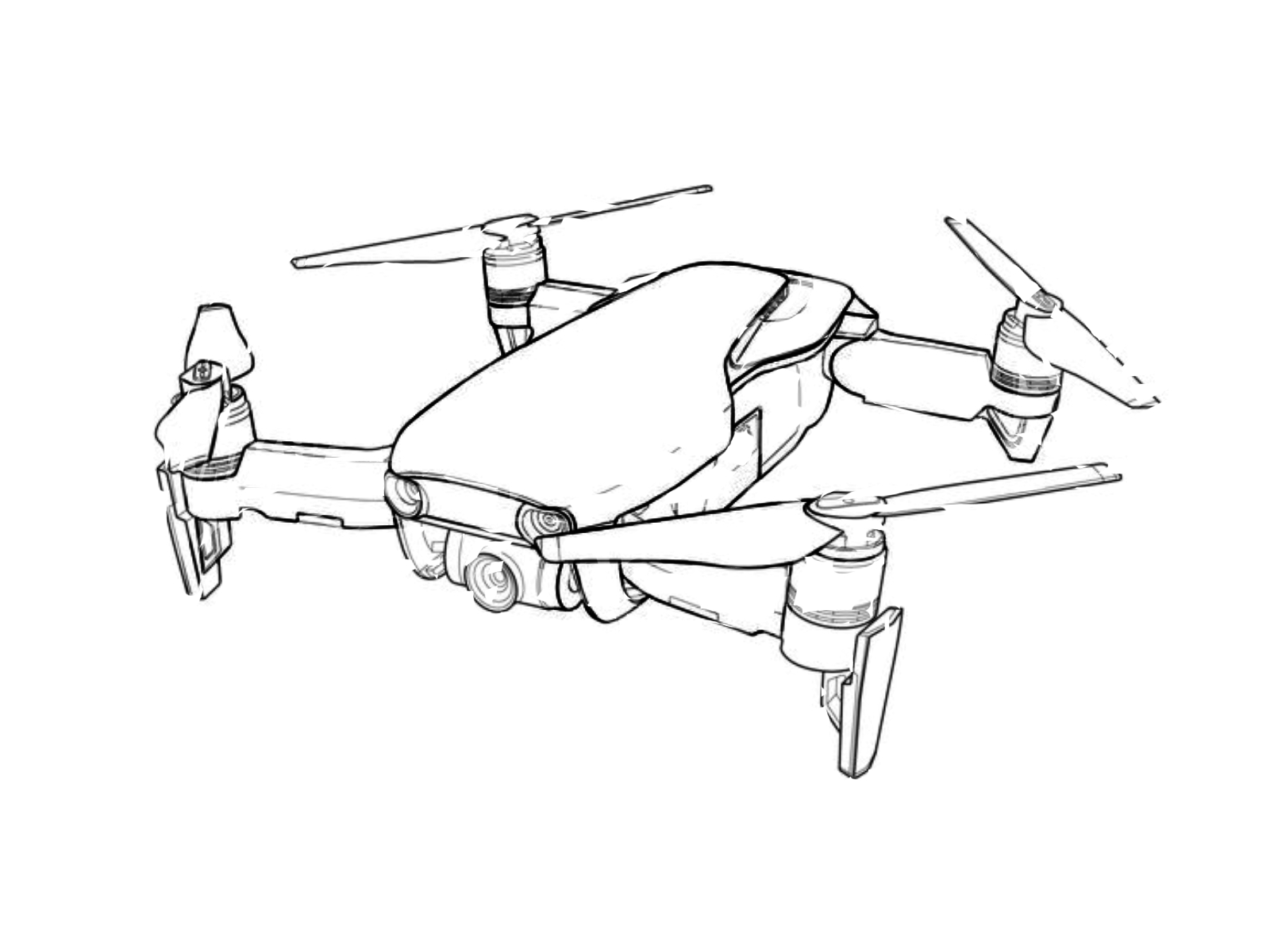 ### Edit Image:
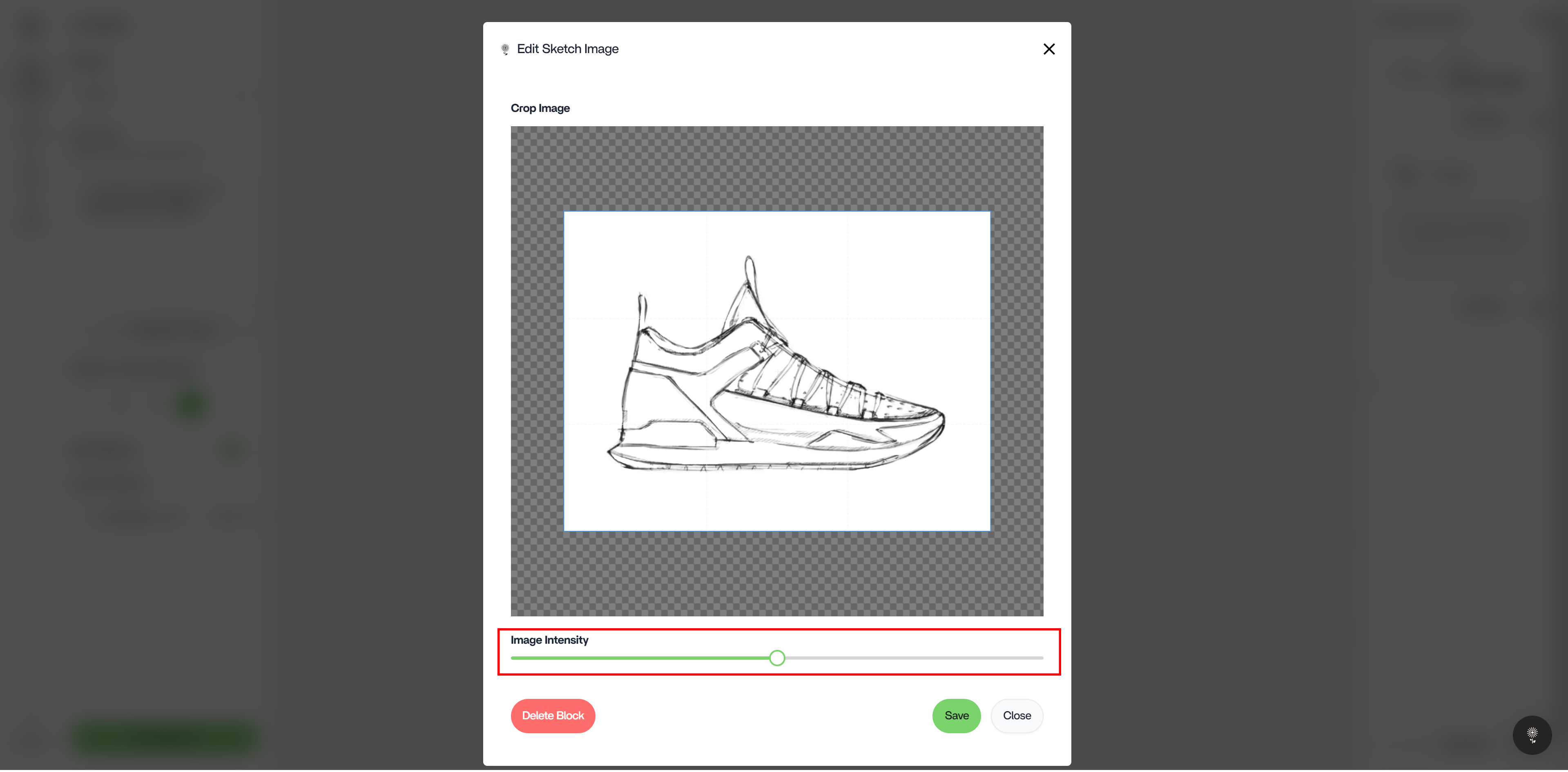
1. if you want just a specific part of your image to be used as a Sketch input, click on Edit Image
### Edit Image:
1. if you want just a specific part of your image to be used as a Sketch input, click on Edit Image
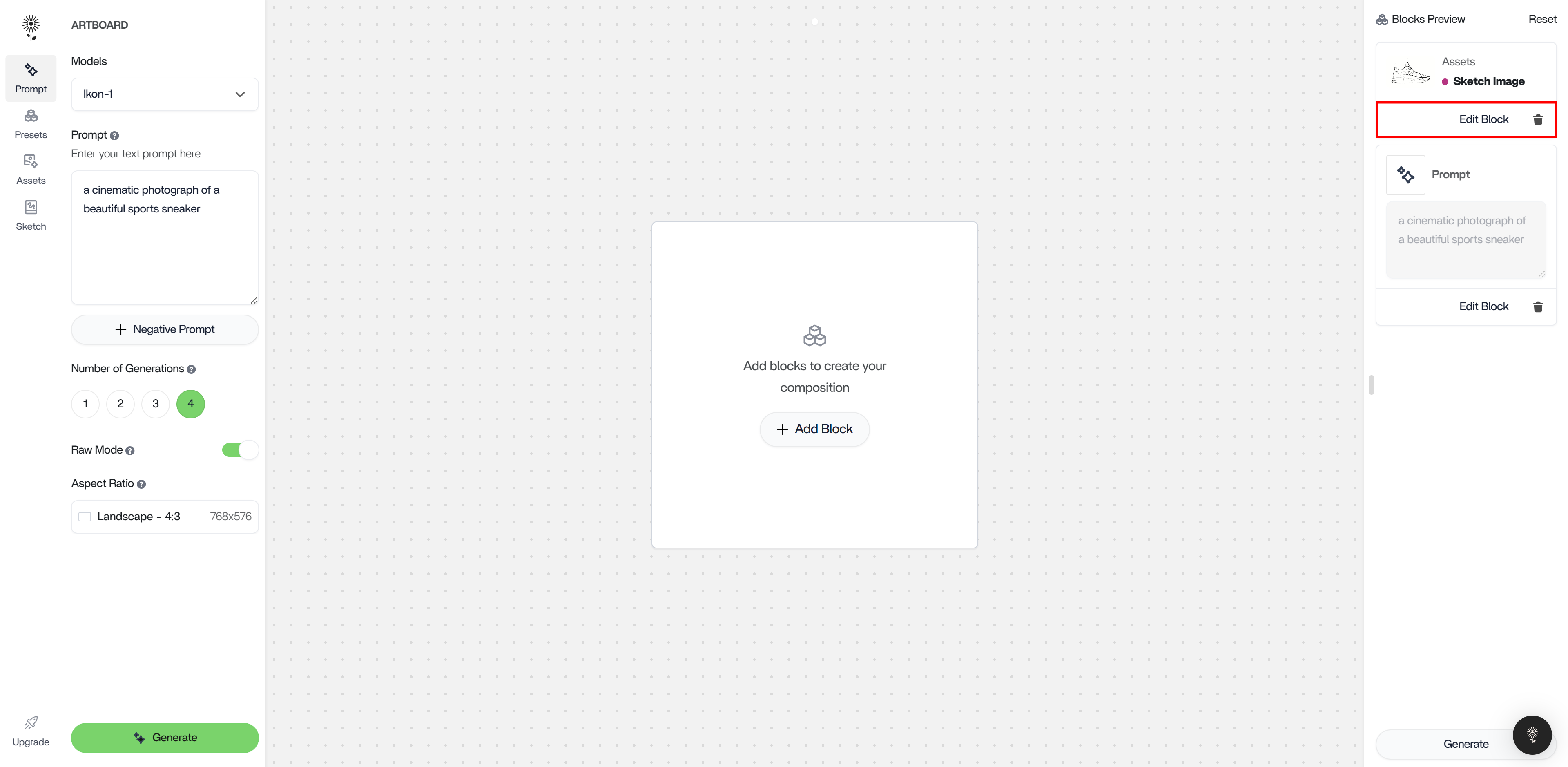 2. in the Edit Image modal, move the image selection area around to capture what you want your generation to focus on.
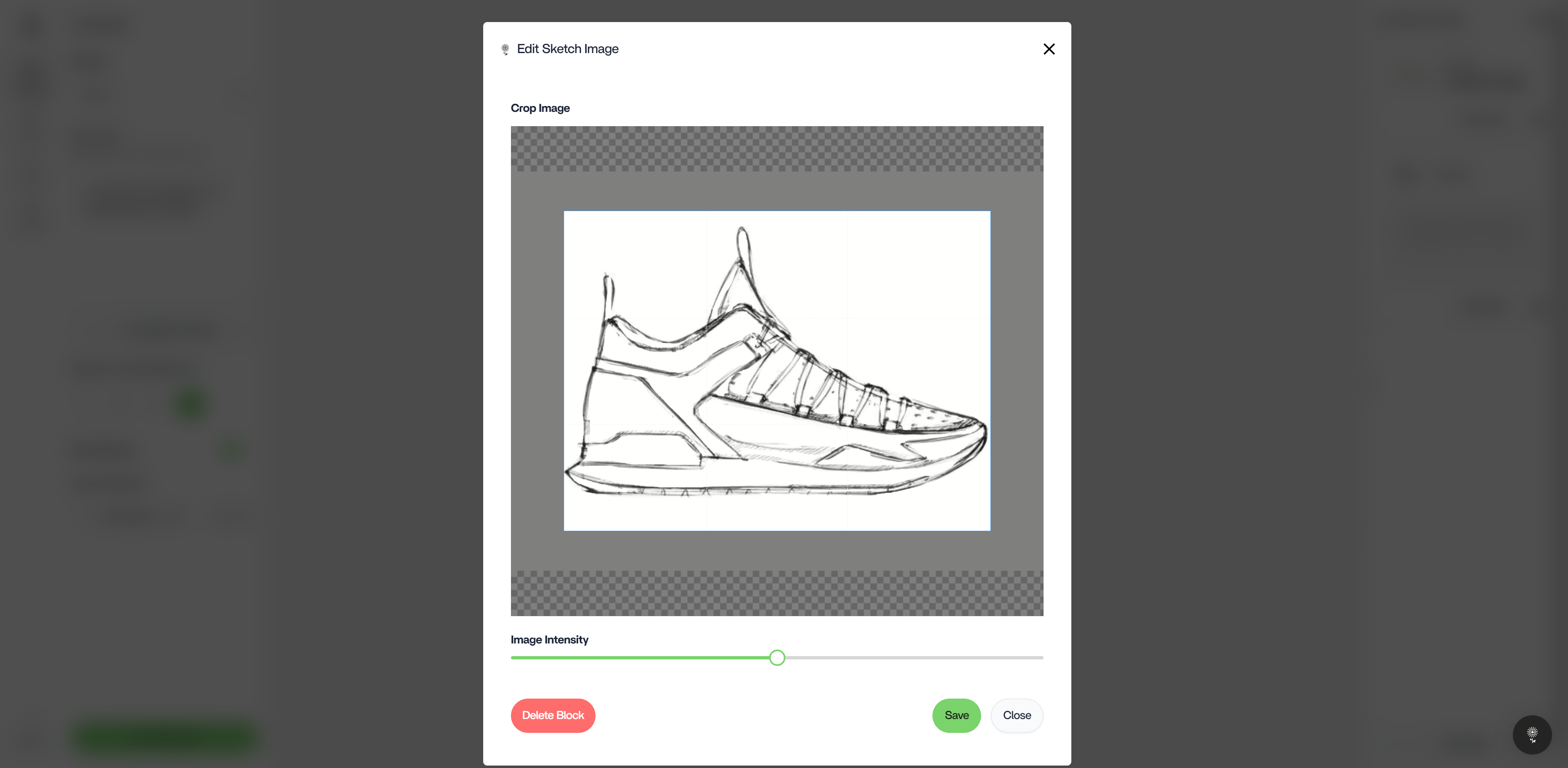
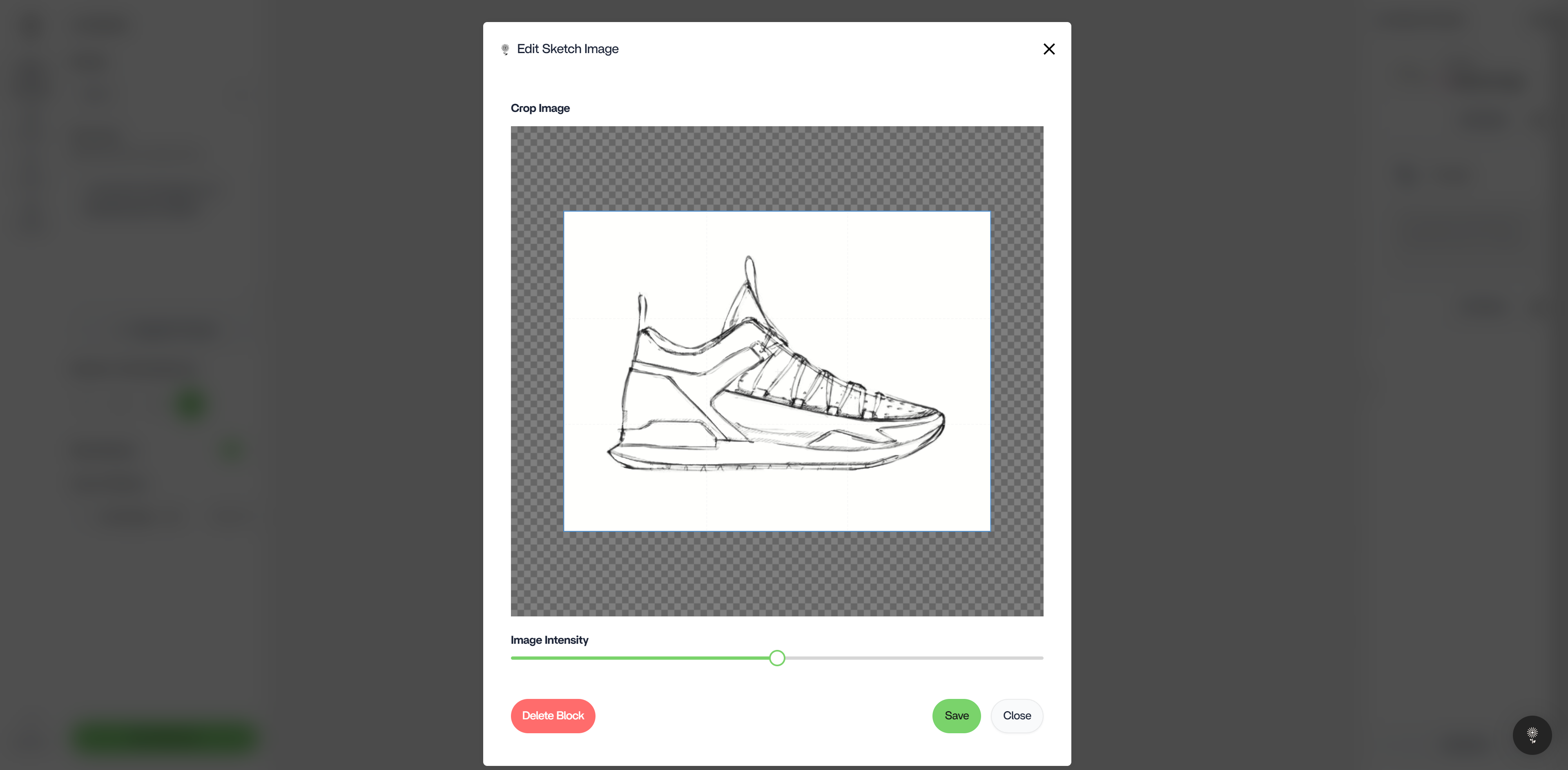 3. in the Edit Image modal, you can also adjust Image Weight. Move the slider left if you want your output to be less influenced by the image and move it to the right if you want your output to be more influenced by the image.